Installation
One small file. The rest installs itself.
Upload a single install.php to your web hosting via WebFTP, open it in your browser, and the installer pulls the full Wintertrace core onto the webspace for you. A browser assistant handles database and admin account. No FTP client, no SSH, no Docker — workable from a phone if that is all you have.
Two things stay yours: telling the domain which folder to serve, and adding one cron job. Both are settings in your hosting panel, and both are covered below. Plan about 10 minutes in total.
Prefer to upload the complete ZIP yourself? The full bundle is still available — see the download page.
Before you start
Three things to have ready. Sorting them out first is the difference between a ten-minute install and an abandoned one.
Access to your hosting panel
You need the file manager (sometimes called WebFTP) and, later, the cron and PHP-version settings. No FTP client and no SSH.
An empty MySQL database
Create one in your panel before you start, along with a database user that has access to it. Note down four values: host, database name, user, password. Wintertrace creates all tables itself — the database only has to exist.
PHP 8.4 or higher, switched on for your domain
Most panels expose a PHP version selector per domain. Set it before you upload anything: on PHP 8.2 or 8.3 the application cannot start at all, and the check that stops it runs before the installer does — so you get a blank error page rather than an explanation.
Requirements
If the hosting runs a typical PHP website, it runs Wintertrace.
- PHP
- 8.4.1 or higher
- Database
- MySQL 5.7+ or MariaDB 10.3+
- PHP extensions
- curl · mbstring · pdo_mysql · gd
- Background tasks
- One cron job, every minute
- Transport security
- An HTTPS certificate — recommended, and free at most hosts
- Disk space
- ~200 MB for the application; photos grow over time
- Outbound network
- HTTPS to weather providers and updates
No root access required. No Docker. No headless Chrome — PDFs are generated server-side in pure PHP.
Step by step
A standard install, start to finish. Steps 4 and 6 are the two that happen in your hosting panel rather than in the installer.
Download the installer
Take the small installer ZIP from the download page. Inside is one file: install.php. No account or registration is required.
Upload install.php
Use the file manager or WebFTP inside your hosting panel — no separate FTP client needed. Put it in the folder you want Wintertrace to live in, for example /wintertrace/. Workable from a phone if that is all you have.
Open install.php in your browser
Visit the file you just uploaded — for example yourdomain.example/wintertrace/install.php. The installer verifies the signature and pulls the full Wintertrace core onto your webspace for you.
Point your domain at the public/ folder
Your domain must serve the public/ subfolder of the upload, not the upload folder itself. On some hosts this is a panel setting; on others it needs a different route. The section below covers both.
Finish the browser assistant
After step 4 your installation answers at the domain itself — open yourdomain.example/, not the install.php address from step 3. The assistant then takes over for database credentials, admin account and base configuration.
Schedule the cron job
The assistant shows the exact address to call when it finishes. Add it to your panel as a job that runs every minute.
Inside the browser assistant
Four screens stand between you and a running installation. From environment check to admin account, the assistant collects what it needs and validates each input before moving on.
Welcome and environment check
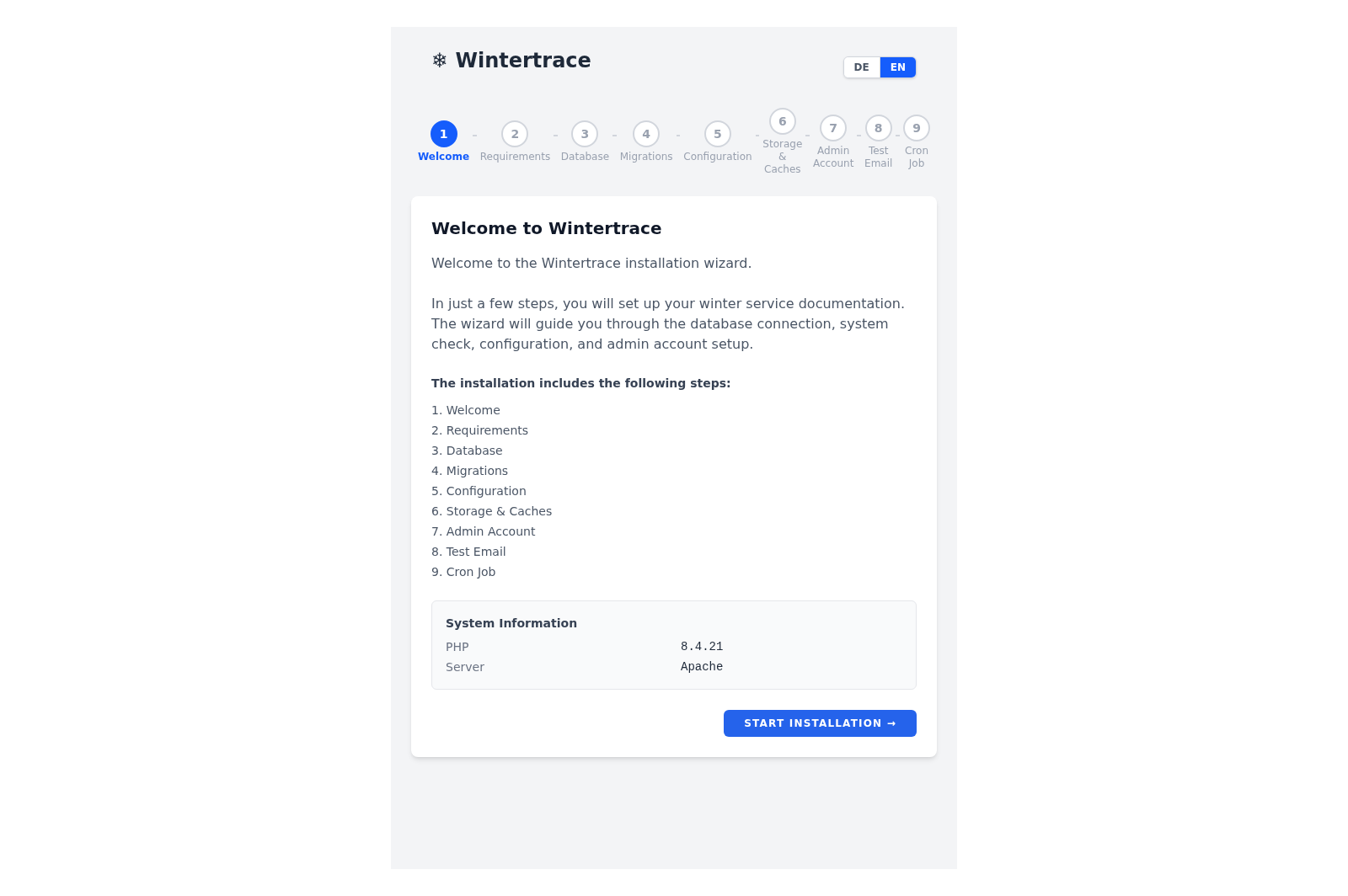
Welcome screen: PHP version and required extensions are verified before installation starts. Database connection
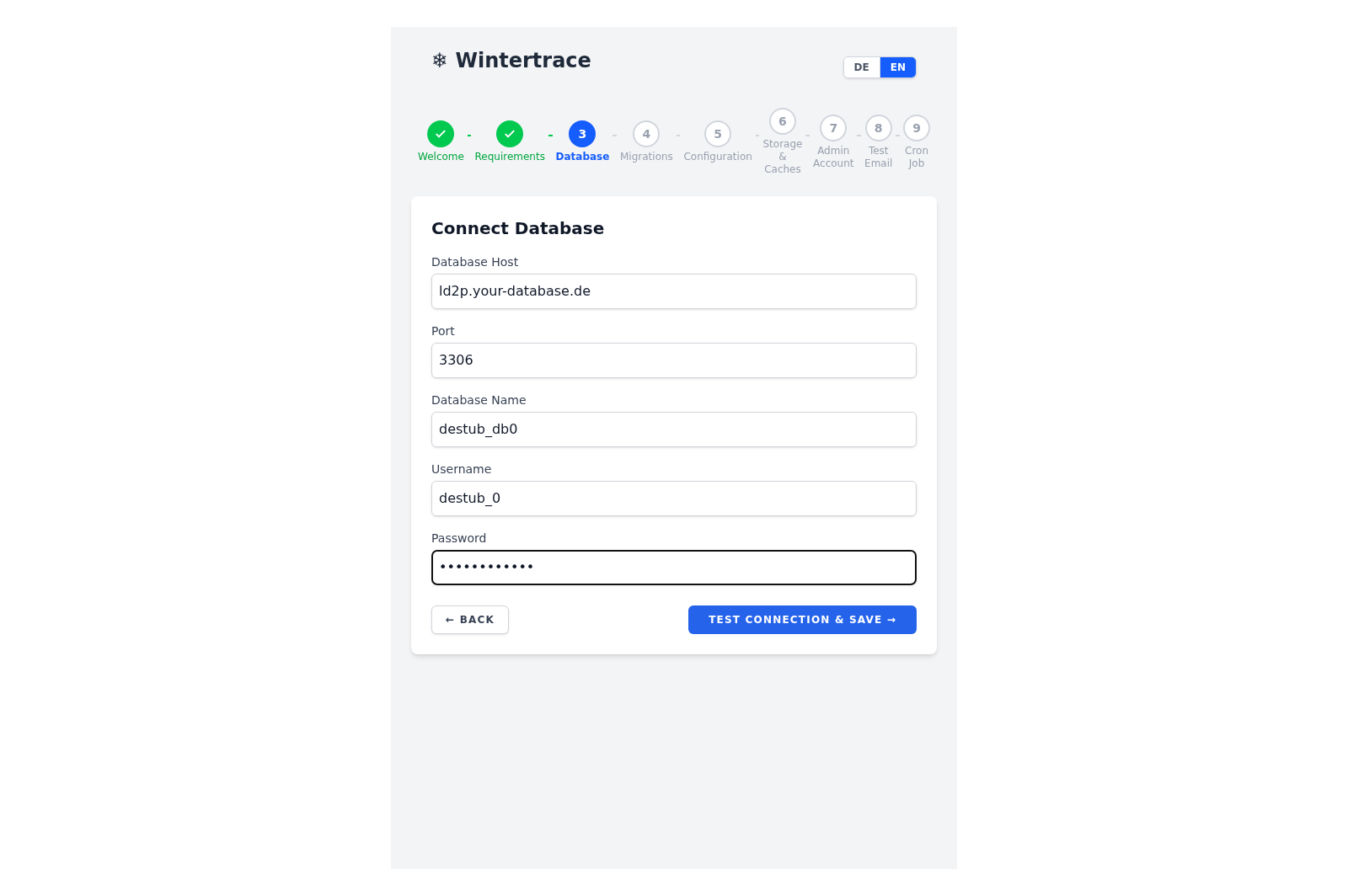
Database screen: host, name, user, password. The assistant tests the connection before proceeding. Admin account
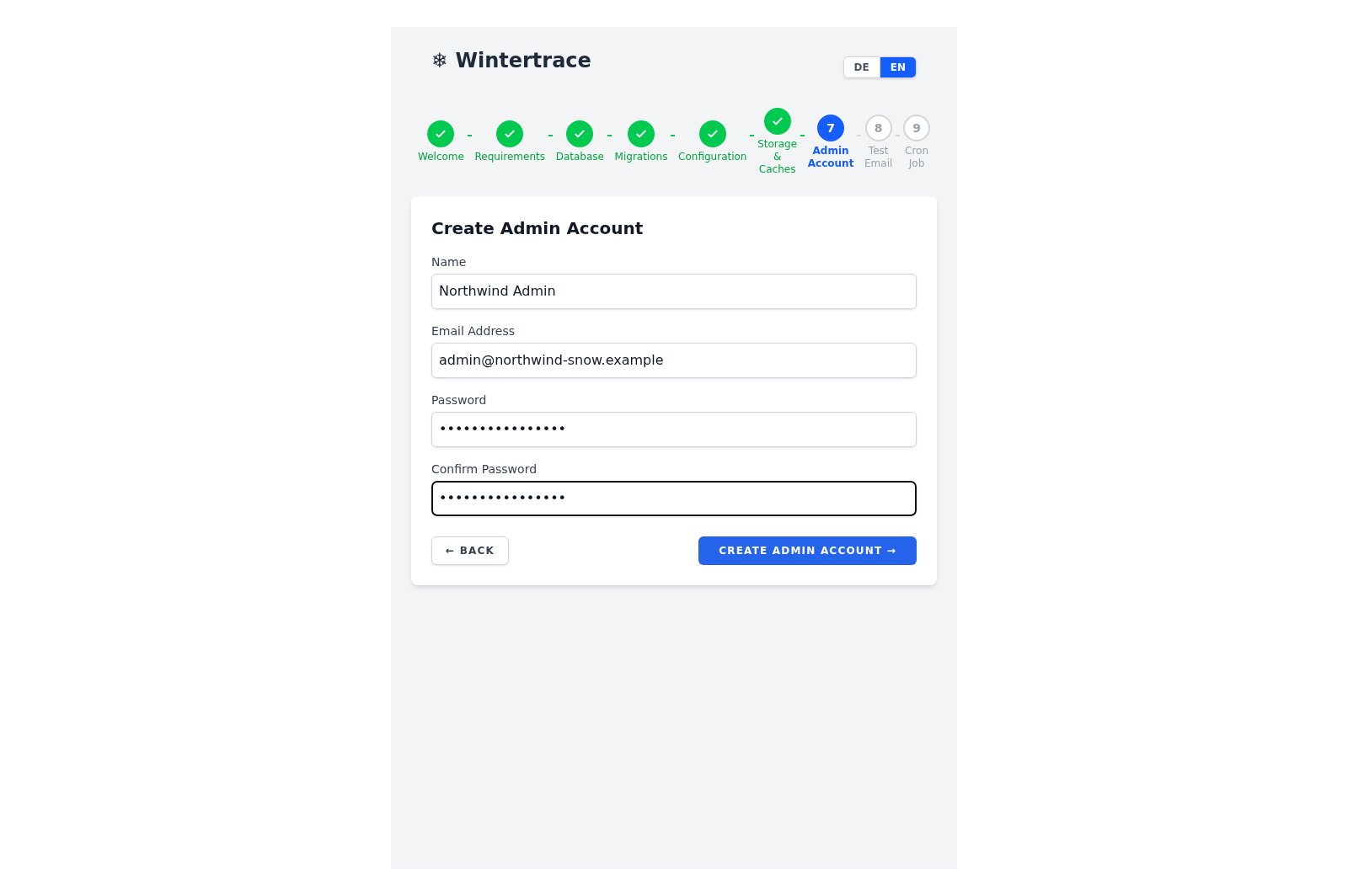
Admin account form with password strength hints. This is the only account created during installation. Done — log in and schedule the cron
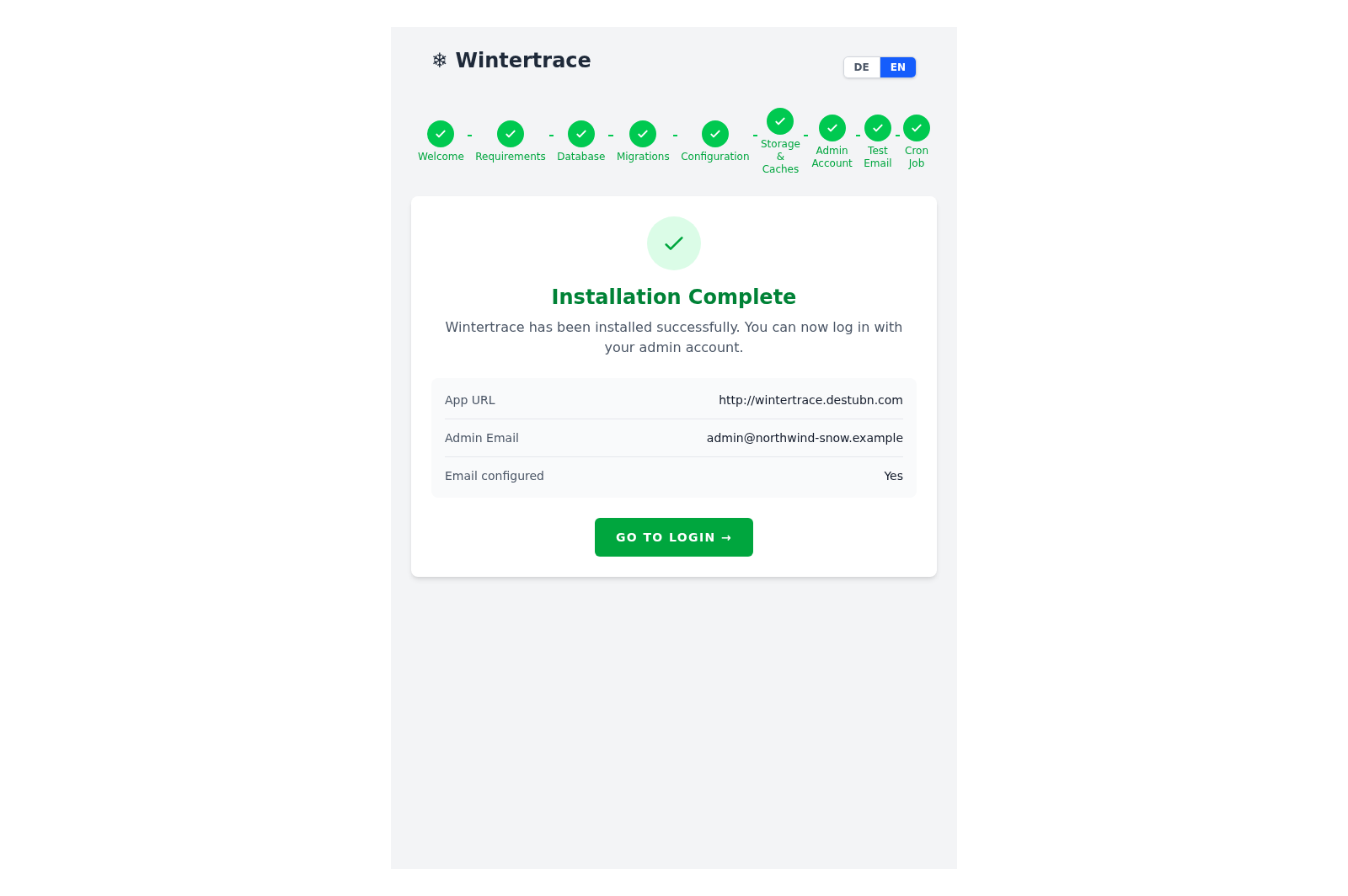
Final screen: confirmation, login button, and a reminder to set up the once-per-minute cron job.
Your domain must serve public/
The document root — sometimes called webroot or root directory — is the folder your domain serves. For Wintertrace it must be the public/ subfolder of the upload, not the upload folder itself.
Example
If you uploaded to /wintertrace/, the domain must serve /wintertrace/public/.
This is not cosmetic: everything outside public/ is application code and configuration, and it does not belong in a publicly reachable folder.
Which route applies to you
Whether your panel can do this at all depends on how the domain is set up. Checked against provider documentation in July 2026:
An addon domain or a subdomain → a panel setting
On cPanel-based hosting, open Domains, find the domain, and set its document root. Bluehost files this under Advanced → Aliases → Manage; on GoDaddy and Namecheap it sits in the domain list itself. Namecheap requires you to untick "Share document root" first.
Your main domain → often not changeable at all
Bluehost and GoDaddy document the document-root setting for addon domains and subdomains only; Hostinger states the home directory cannot be changed on its shared plans; SiteGround points to an .htaccess rule rather than a setting. If that is your situation, use the route below — it is the normal path on these hosts, not a workaround for a broken install.
Other panels differ in wording — look for "document root", "webroot" or "main folder" inside the domain settings.
If the document root cannot be changed
Move the contents of public/ into the folder your domain already serves, and adjust the paths inside index.php accordingly. The browser-based installer does not help with this step — if you are unsure, your hosting provider's support can tell you in one message which of the two routes your plan supports.
One cron job, every minute
One scheduled task drives weather fetching, PDF generation, notifications, and the cron heartbeat.
Wintertrace uses one cron entry that runs every minute. Each run processes any queued background work and exits — there is no daemon, so shared hosting that kills long-running processes is not a problem.
The assistant shows you the exact address to call on its final screen. Most shared hosting panels offer a graphical cron editor that takes that address directly, which is the simplest route and the one to prefer.
If your panel asks for a command instead of an address, the equivalent entry is:
* * * * * cd /path/to/wintertrace && php artisan schedule:run >> /dev/null 2>&1Replace /path/to/wintertrace with the folder you uploaded to; your file manager shows the full path. The dashboard inside Wintertrace shows whether the cron is running, so you can confirm it worked straight away.
When something fails
The five things that most often go wrong on shared hosting, and what each one actually means.
- The environment check fails on the PHP version
- Most panels let you switch the PHP version per domain — look for "PHP version", "PHP configuration" or "PHP selector" in the domain or hosting settings. Set it to 8.4 or higher and reload install.php. If you get a blank page instead of the environment check, that is the same problem one step earlier: the version is below 8.4 and the application stops before it can render anything.
- The database connection is refused
- The credentials the assistant asks for are the database user's, not your hosting panel login. Check that the database exists, that the user is assigned to it, and that the host is the one your panel states — usually localhost, but some hosts publish a separate database hostname.
- The domain shows a file listing or a blank page
- The document root is still pointing at the upload folder rather than at public/ inside it. See the document root section above.
- The dashboard says the cron has not run
- If your panel calls a command rather than a URL, it may need the full path to the PHP binary; panels that offer a PHP-version dropdown for cron jobs handle this for you. The dashboard inside Wintertrace shows the cron status, so you can confirm the fix without waiting for a service run.
When you are through: remove install.php
Once the installation has finished, delete install.php from the webspace. It has done its job, and there is no reason to leave a script that fetches and unpacks code sitting in a publicly reachable folder.
Still stuck? The self-hosting documentation goes deeper on requirements, the cron job in operation and the GPS setup. If that does not settle it, write to support@noschmarrn.dev and describe what the installer showed you.
Staying up to date
Updates are a decision, not something that happens to your installation overnight.
Updates are downloaded and installed from inside the admin area at a single click. Each release is verified against an Ed25519 root key embedded in the application — tampered packages are refused.
Updates never apply automatically. The admin decides whether and when to install. If an install fails partway, the application stays in maintenance mode and the next attempt resumes without data loss.
Adding optional modules later
The core install never needs an add-on.
If a situation calls for one — for instance the Diagnostic module when a fault is hard to reproduce by email — two paths exist.
From inside the admin area
The Modules menu lists the current catalogue. One click installs an add-on, signed against the same Ed25519 root key as core updates.
By hand
Download the module from the catalogue at /modules/, unpack it, and upload the folder to modules/ inside the installation with the same file manager you used for install.php.
Ready when you are.
Upload one small file to your web hosting, open it in your browser, and the installer puts the latest signed Wintertrace core on your webspace. About ten minutes — no FTP client needed.
install.php · Ed25519-signed core · GNU AGPLv3