Module · Materials management
Warehouse
Keep track of what you have and where it is — de-icing salt, grit, shovels, gloves — across the depot, each vehicle and each driver. Drivers book what they used straight from the PWA during a job, and stock is always the sum of every booked movement rather than a counter someone remembered to update. That makes the material cost of a job, and the value of your store, answerable at any time.
- Version
- 1.3.0
- Released
- 28 Aug 2026
- Languages
- German, English
Salt, shovels and guesswork
You buy de-icing salt by the pallet. Drivers take what they need, and the pallet runs out at eleven at night in the middle of a route — the one hour when no supplier delivers.
The same gap shows up in the paperwork. Nobody can say who used what, so the material cost of a job stays an estimate, and the shovel a stand-in driver took in March does not come back in November.
This module closes that gap with bookings rather than a spreadsheet: every delivery, every transfer and every handful of grit is recorded against a location, and the stock figure follows from those records.
It works alongside the rest of Wintertrace — the same customers, jobs and drivers you already manage there.
Stock across every location
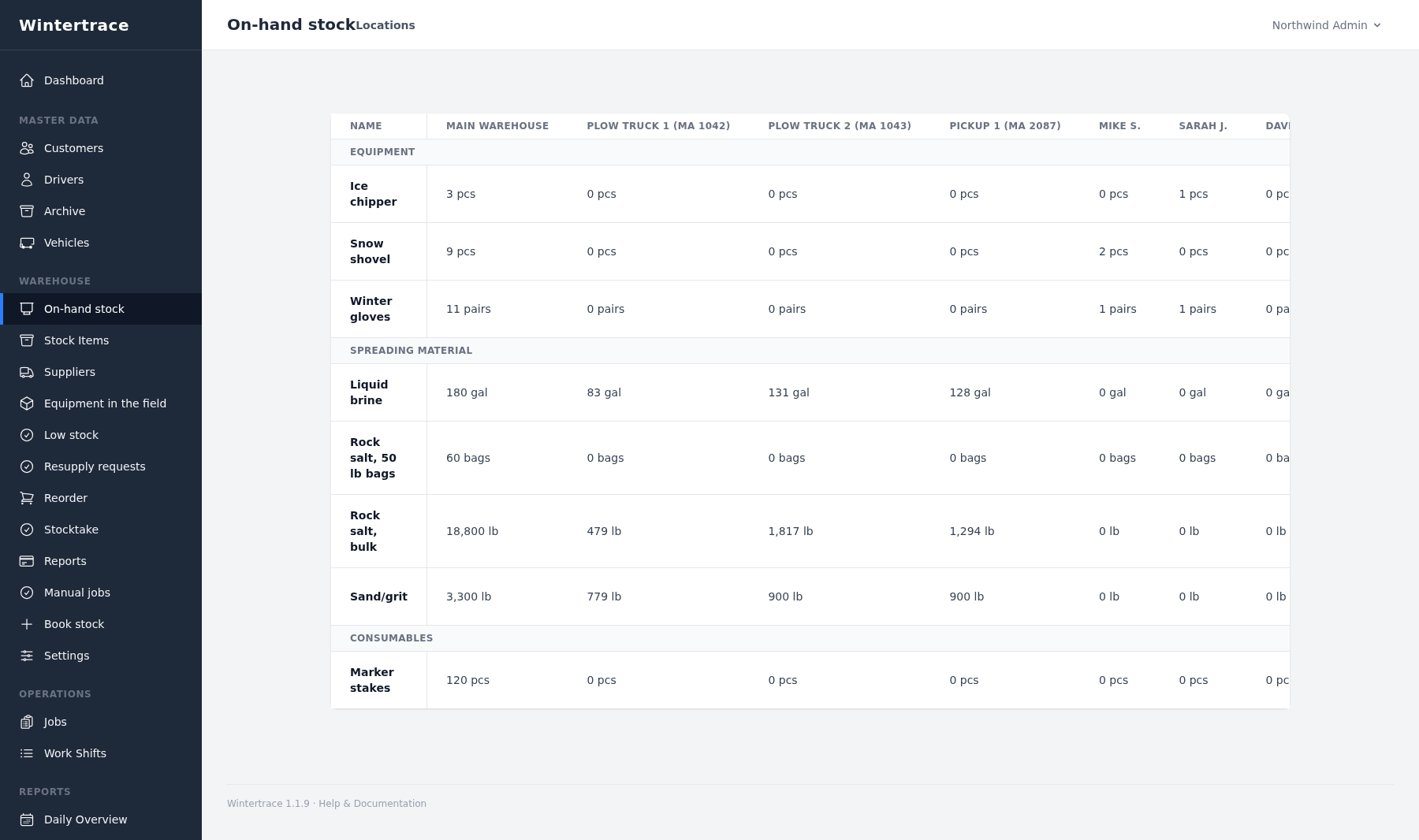
One table answers the question that matters: what is where? The warehouse, every vehicle and every driver is its own location with its own stock.
Items are yours to define — bulk material by weight, liquid by volume, tools by the piece. Each item has exactly one unit, and the module never converts between units: an operation that thinks in bags keeps bags.
Items sit in categories, and the table groups its rows under those category labels — group headings rather than subtotals, so a long list stays readable line by line. A value per category comes from the stock value report further down this page.
Booking without accounting knowledge
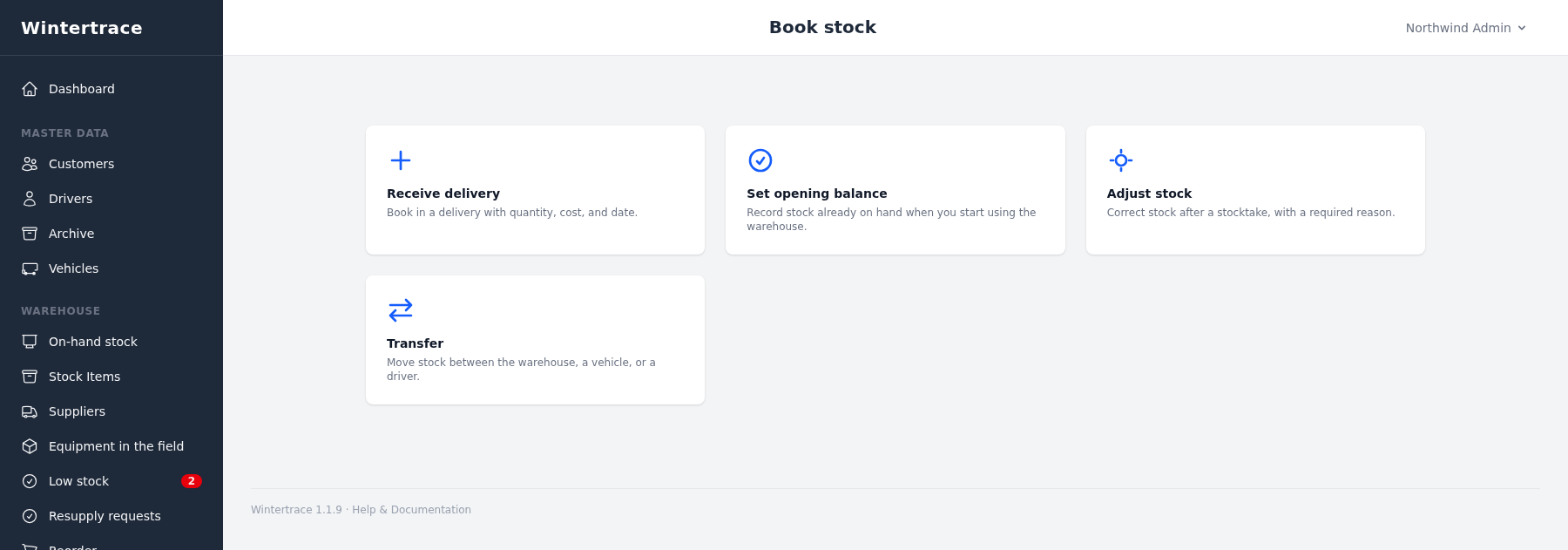
Four everyday actions cover the office side of the module. No chart of accounts, no document number ranges, nothing to learn from a manual.
- Receive delivery — book in a delivery with quantity, cost and date.
- Set opening balance — record stock already on hand when you start.
- Adjust stock — correct a figure after a count; a reason is required.
- Transfer — move stock between the warehouse, a vehicle or a driver.
Each action is one form with the fields it needs and nothing else. The required reason on an adjustment is the only field the module insists on beyond the numbers, because a correction without a reason is the point at which stock records stop being worth reading.
Drivers record usage in the field
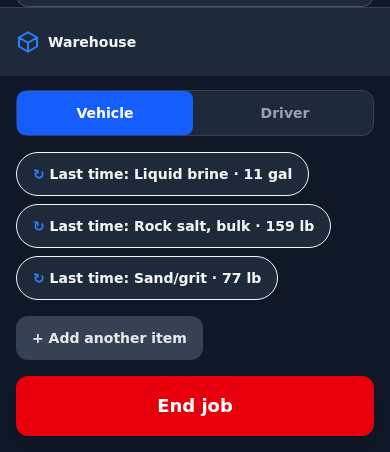
Material used on a job is booked by the driver while the job runs, in the driver app — a PWA, meaning the web app installed on the phone’s home screen.
In a running job the Record consumption block has a source toggle between vehicle and driver, an item select, a quantity field with minus and plus controls either side of it, and Last time chips that repeat an item and the quantity last used on that vehicle. Below the field a readout shows the effect before it is booked, in the form Stock: 170 lb → after: 20 lb.
Material comes off that vehicle’s stock, not a pooled total — which is what makes the on-hand table above worth looking at. If a driver runs short mid-route, the app also carries a resupply request that lands in the office.
Reorder before the pallet is empty
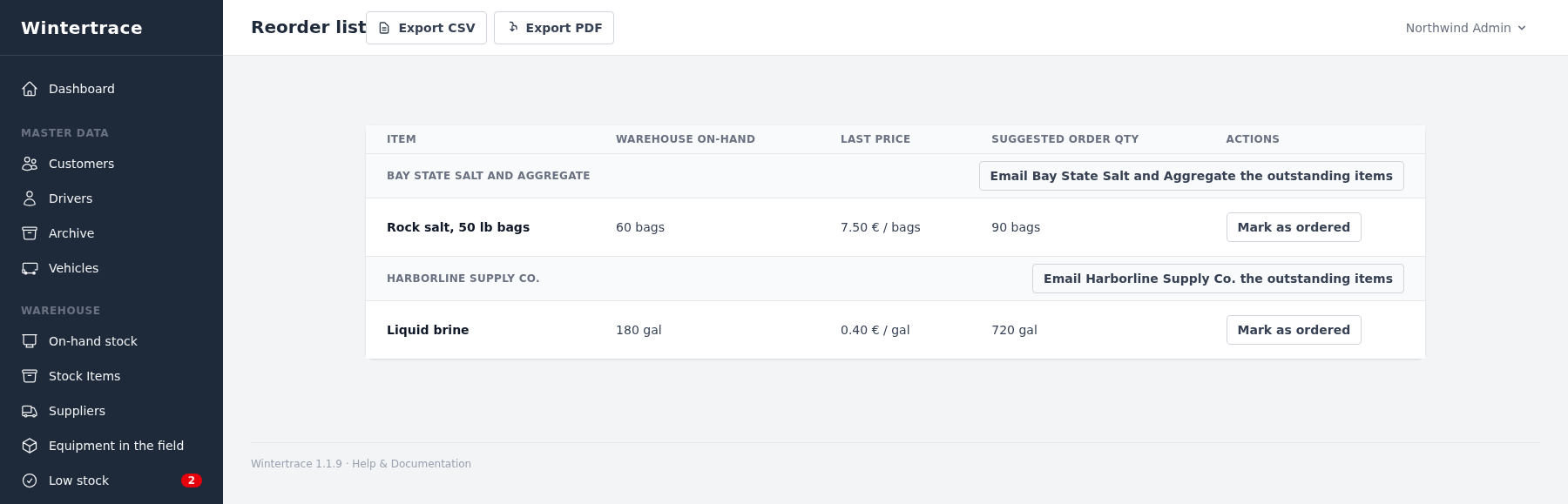
Every item can carry a low-stock threshold. Falling below it raises an alert and puts the item on the reorder list.
The list is grouped by supplier and shows, per item, what is left in the warehouse, the last purchase price, and a suggested quantity — target level minus actual. Each supplier group carries one action that emails that supplier every outstanding line at once, and each item line carries its own Mark as ordered.
Alerts reach you by email, or through Telegram with the Telegram module installed.
What the job actually cost
Every consumption booking carries the value of the material it used. That is what turns usage data into a cost figure.
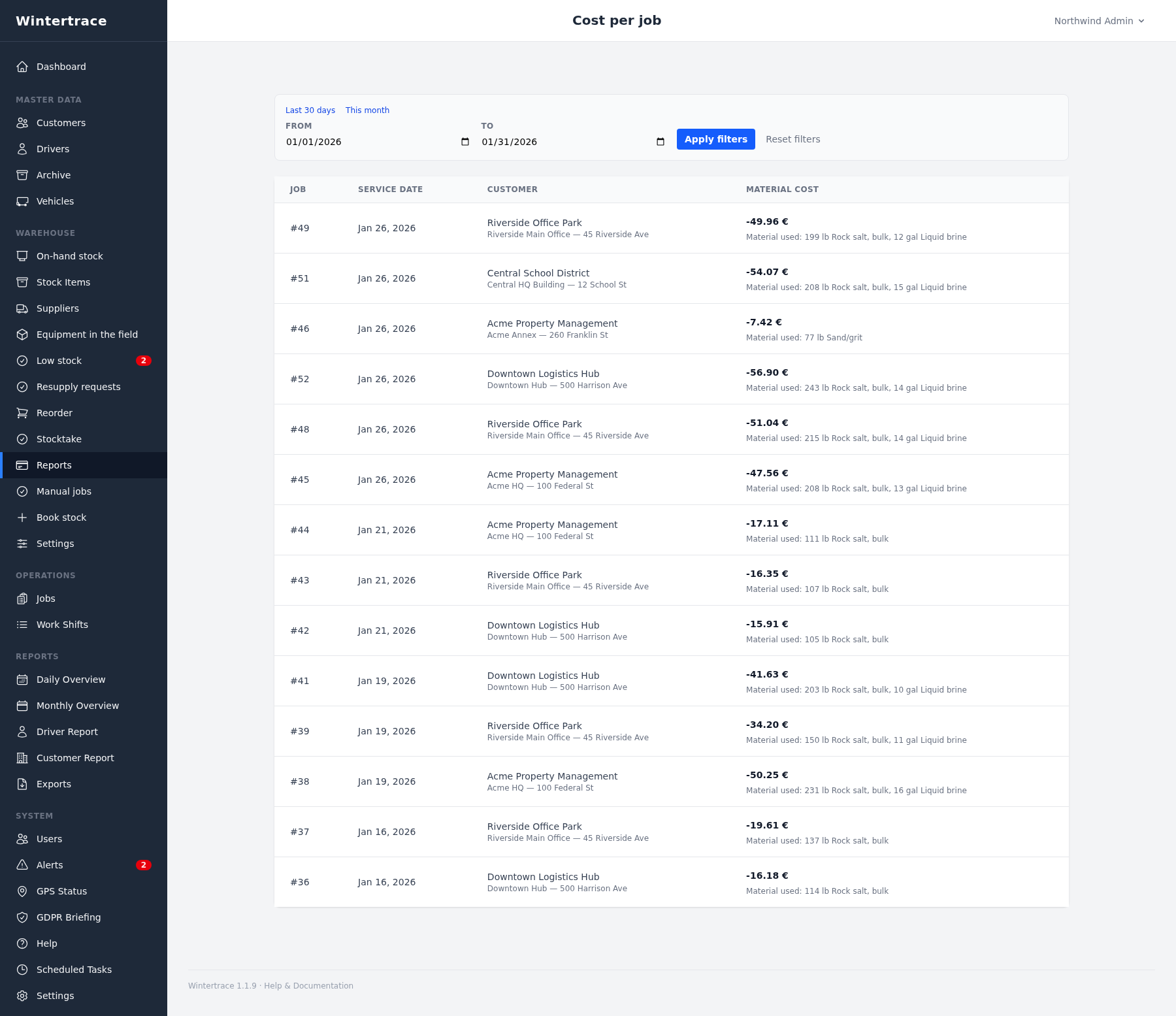
From those bookings come three reports: cost per job, cost per customer and cost per period. Each job lists the material behind its figure, so a number you find surprising can be traced to the bookings that produced it.
Valuation uses weighted average cost — the usual method for bulk material, where one delivery mixes into the heap left from the last one.
The module’s own settings page holds exactly one option: Show material cost on the job PDF. It is off by default. Switched on, a single net material-cost total appears under the material list on the job report your customer receives — never a price per item.
Stock value, stocktake and the season
The value of your store, in total and per category, expandable down to the single item.
The guided stocktake takes every counted quantity, books the differences in one pass, and leaves a difference report showing what was counted against what the records held. A season assistant covers the two dates that matter for a winter operation: the start and the end of it.
Reports export as CSV and PDF, which is usually the form your accountant or bookkeeper asks for.
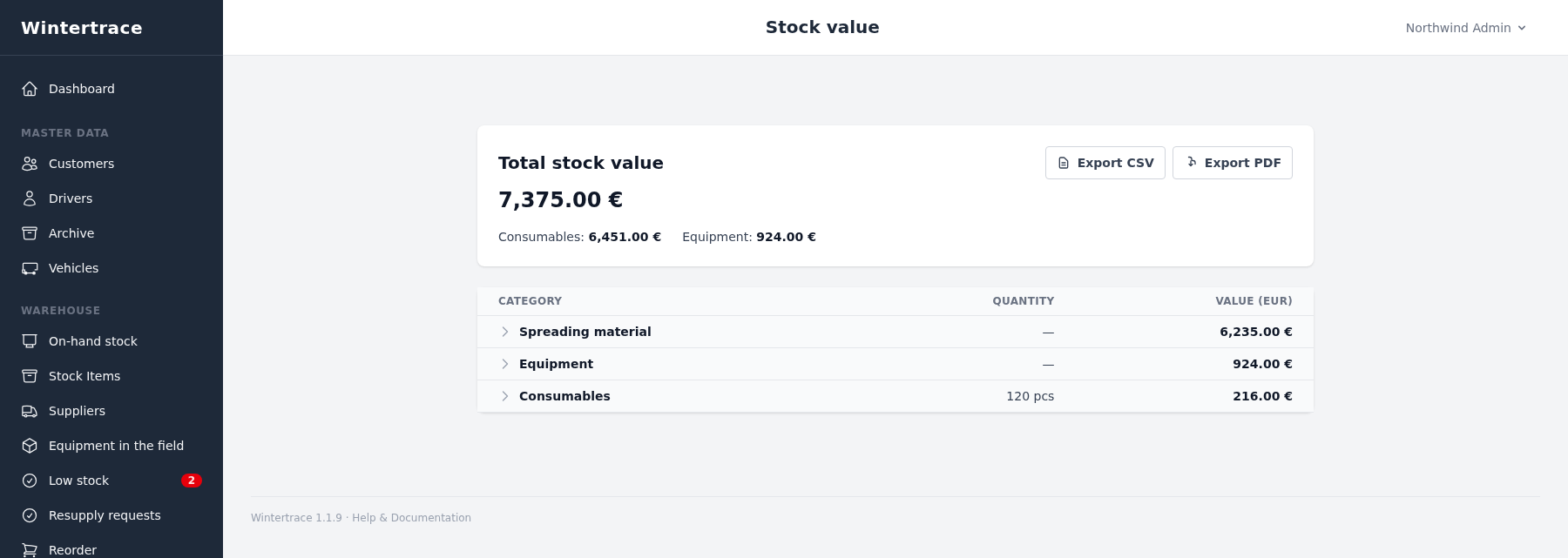
On amounts: the module currently shows every value in euros, and there is no currency setting yet — which is why the screenshots above read that way. Support for further currencies and for additional weight units is planned; the roadmap carries the current status.
Every movement stays visible
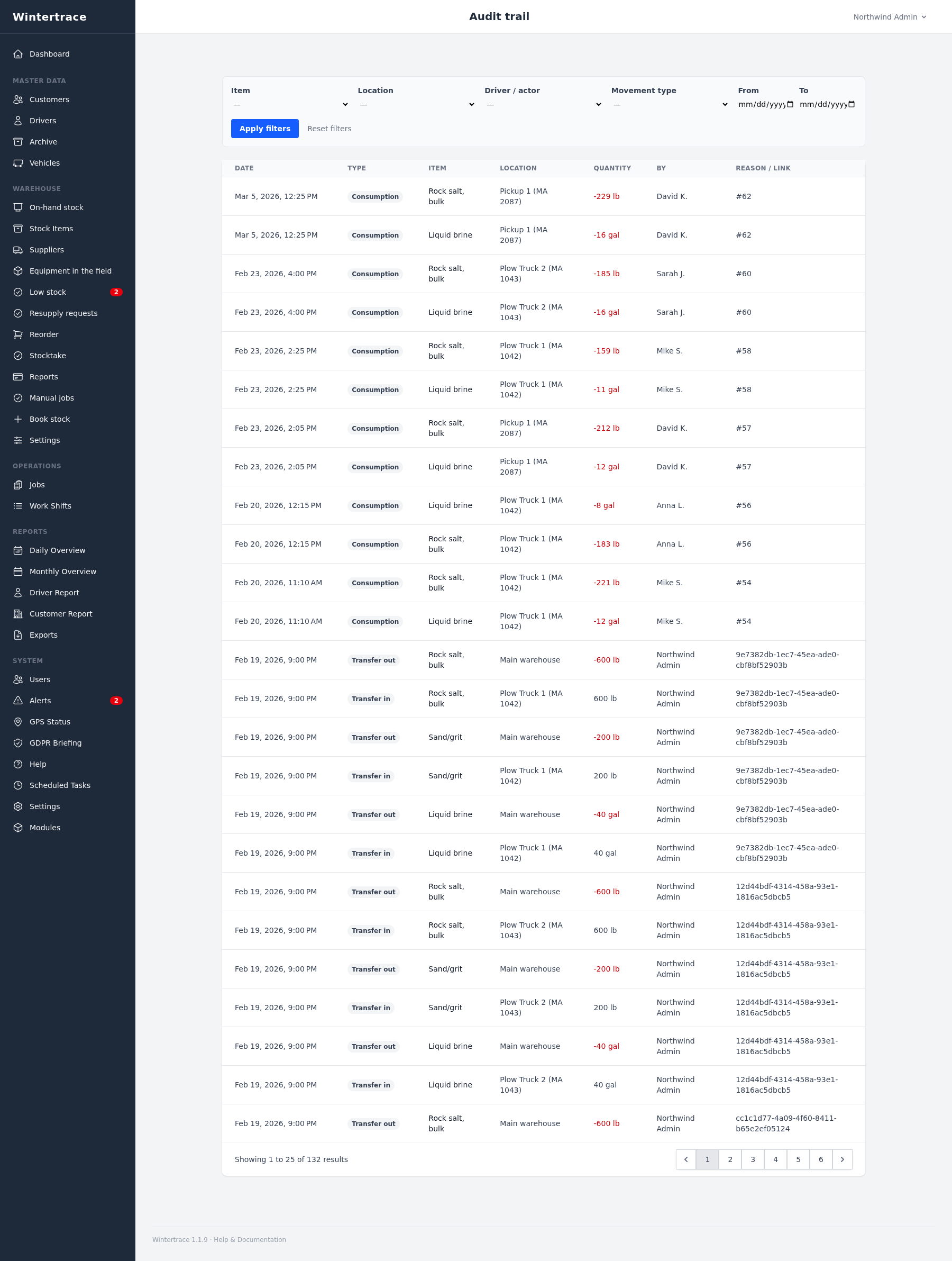
The audit trail is what everything else on this page rests on. Stock is not a stored number — it is computed from the sum of all movements.
Each line carries the date, the movement type, the item, the location, the quantity, the person responsible and the job it belongs to. Filters narrow it by item, location, driver, movement type and period.
Nothing is deleted. A mis-booking is reversed, and both the original and the reversal stay visible. Because the figure on the on-hand table is derived rather than kept, it cannot quietly drift out of true: if a number looks wrong, the movements that produced it are all there to read.
Issued, returned, accounted for
Shovels, ice chippers and protective kit run through the same mechanics as consumables, with a different ending.
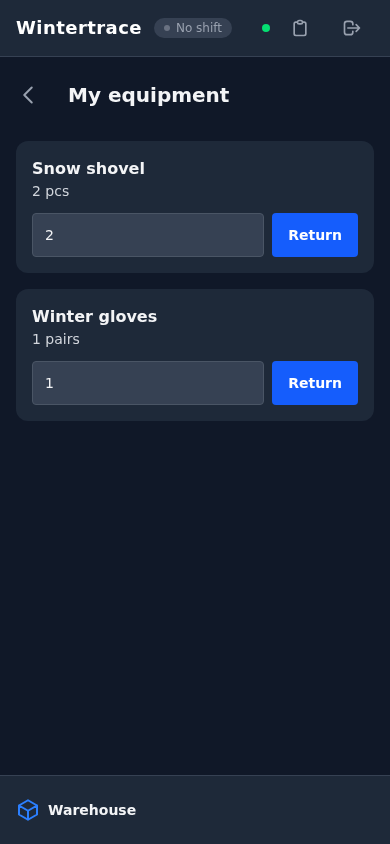
Equipment is issued to a driver, returned to the store, or written off on loss or breakage. An overview grouped by driver shows who holds what and since when, with the return and write-off actions on each line.
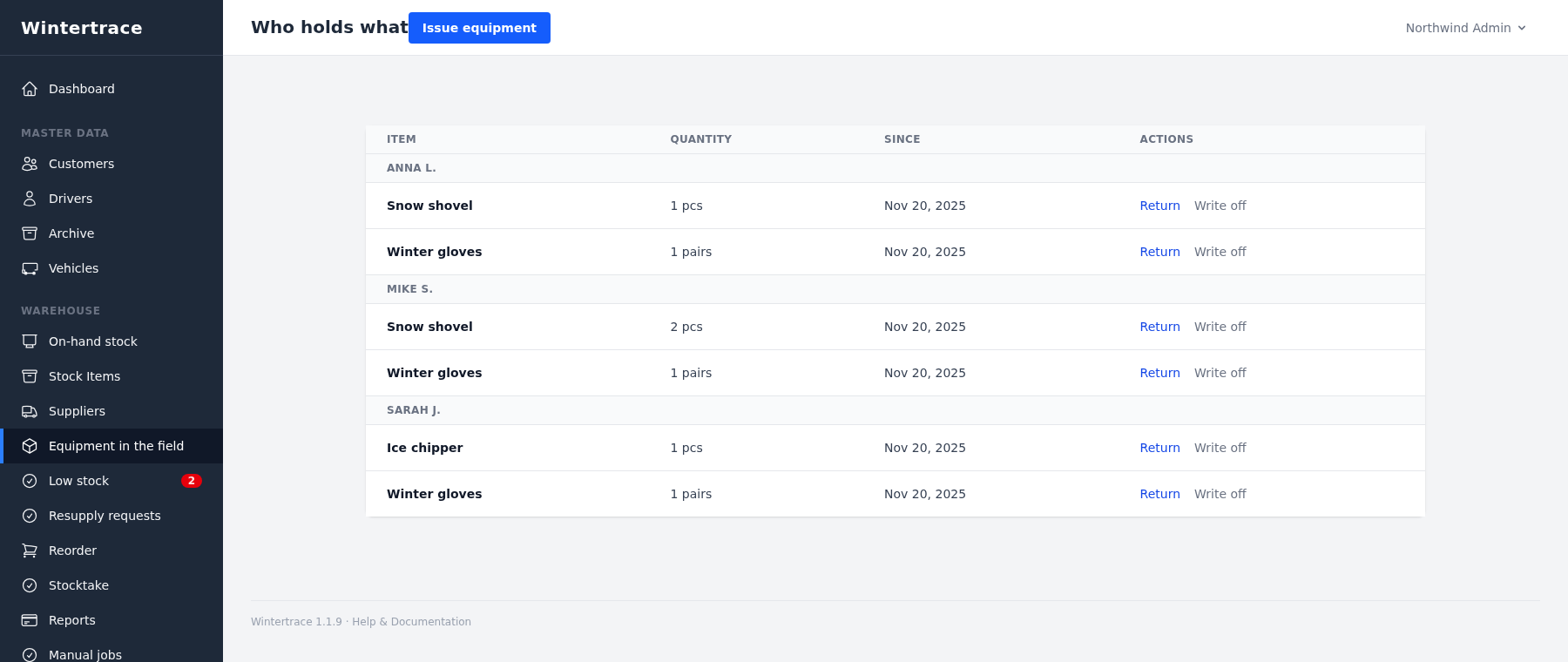
Drivers see their own kit in the app and hand it back there, so a return does not depend on someone in the office remembering it.
Who this is for
Three people touch the module, and each of them wants something different from it.
The operator
Stock, cost and value without a spreadsheet nobody maintains. You see which customer costs which material, and you reorder before the pallet is empty rather than the night after.
The driver
Booking happens inside the running job: a Last time chip repeats what was used on that vehicle before, and the remaining amount is shown before it is booked. Nothing to write on a slip of paper and catch up on the next morning.
The accountant
A valued stock level, as CSV or PDF, and an audit trail that backs every number in it.
What this module does not do
Being straight about this saves disappointment after installing.
No purchase-order handling. The reorder list is a shopping list with supplier, price and suggested quantity — no orders, no order confirmations, no invoice checking.
No barcode or QR scanning. Entry happens through the interface.
No batch or shelf-life tracking. Salt is salt; the module does not track delivery lots.
No unit conversion. One item, one unit. Automatic conversion would be a source of error with nothing to gain.
No customer-facing view of consumption. Usage data stays internal. Only the material-cost line on the job report can be switched on.
Module facts
What the module needs, where it appears, and what it records.
- Requires
- Wintertrace 1.0.0 or newer
- Surfaces
- Admin dashboard (desktop) and driver app (phone)
- Locations
- Main warehouse, per vehicle, per driver — combined as you like
- Item types
- Consumables and equipment
- Movement types
- Goods receipt, opening balance, correction, write-off, consumption, transfer out, transfer in, issue, return, reversal
- Valuation
- Weighted average cost
- Export
- CSV and PDF
- Notifications
Email, and Telegram with the Telegram module installed
- Permissions
- 10 rights, assignable individually — stock items (view and edit), goods receipt, corrections, stock views, categories, transfers, suppliers, consumption and equipment
This is the largest module built for Wintertrace so far, while the software it extends is deliberately kept small. Why that is, and what went into this one, is on the blog: Why the software stays small — and why its biggest module is a warehouse.
File integrity
Every published module is signed against the same Ed25519 root key used for Wintertrace core updates. The values below come straight from the catalogue API.
- Size
- 436 KB
- SHA-256
- e860d940f6d0…44ce72ab
- Released
- 28 Aug 2026
- Languages
- German, English
Install this module
The same two paths as any Wintertrace add-on.
From the admin area
Open the Modules menu inside a running Wintertrace installation. Pick Warehouse from the catalogue and install with one click.
Manually via FTP
Download the archive, unpack it, and upload the folder to modules/ inside your installation.
New here? The installation page walks through a fresh setup first.
Download
The module is served from the Wintertrace add-on registry at jenni.noschmarrn.dev — the same source the admin area pulls from.
External link — the download is served from the maintainer's registry at jenni.noschmarrn.dev and verified against the SHA-256 above.