Installation
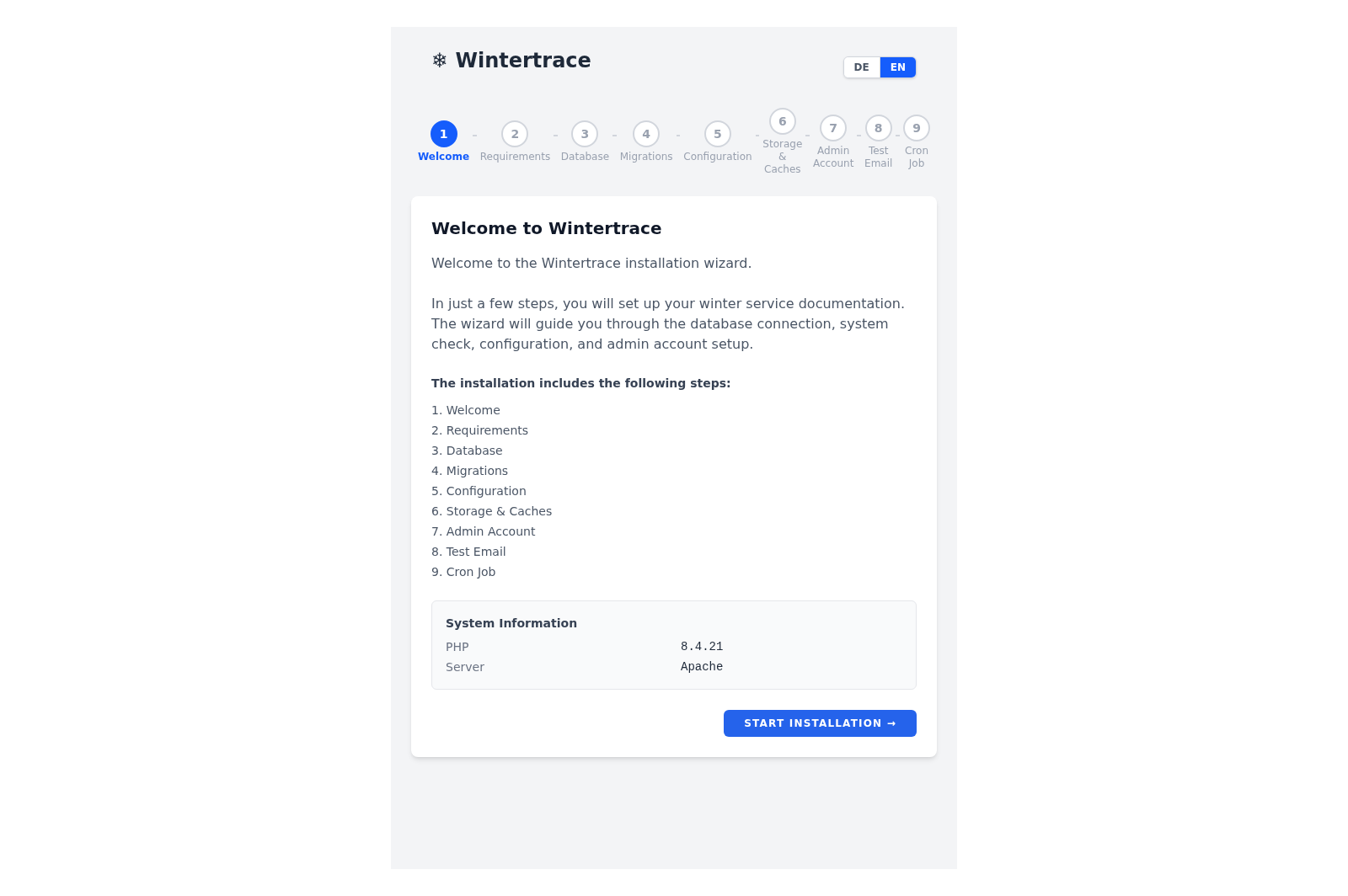
The installer runs in the browser and walks through requirements, database, administrator account and the scheduled task. It is the same procedure whether you install on shared hosting or your own machine.
Screenshots
Every image on this page is a screenshot of snow removal software that is actually running — a Wintertrace 1.1.9 installation with a season of invented operations in it. Nothing here is a mockup or a design study.
The walkthrough follows the order a winter service operator meets the software in: setting it up, working through a night of snow, producing the service proof, and running the season. It takes about five minutes to read.
Part 1
What you do once, before the first snowfall. Wintertrace runs on your own web hosting, so this part happens on your server rather than in someone else’s account.
The installer runs in the browser and walks through requirements, database, administrator account and the scheduled task. It is the same procedure whether you install on shared hosting or your own machine.
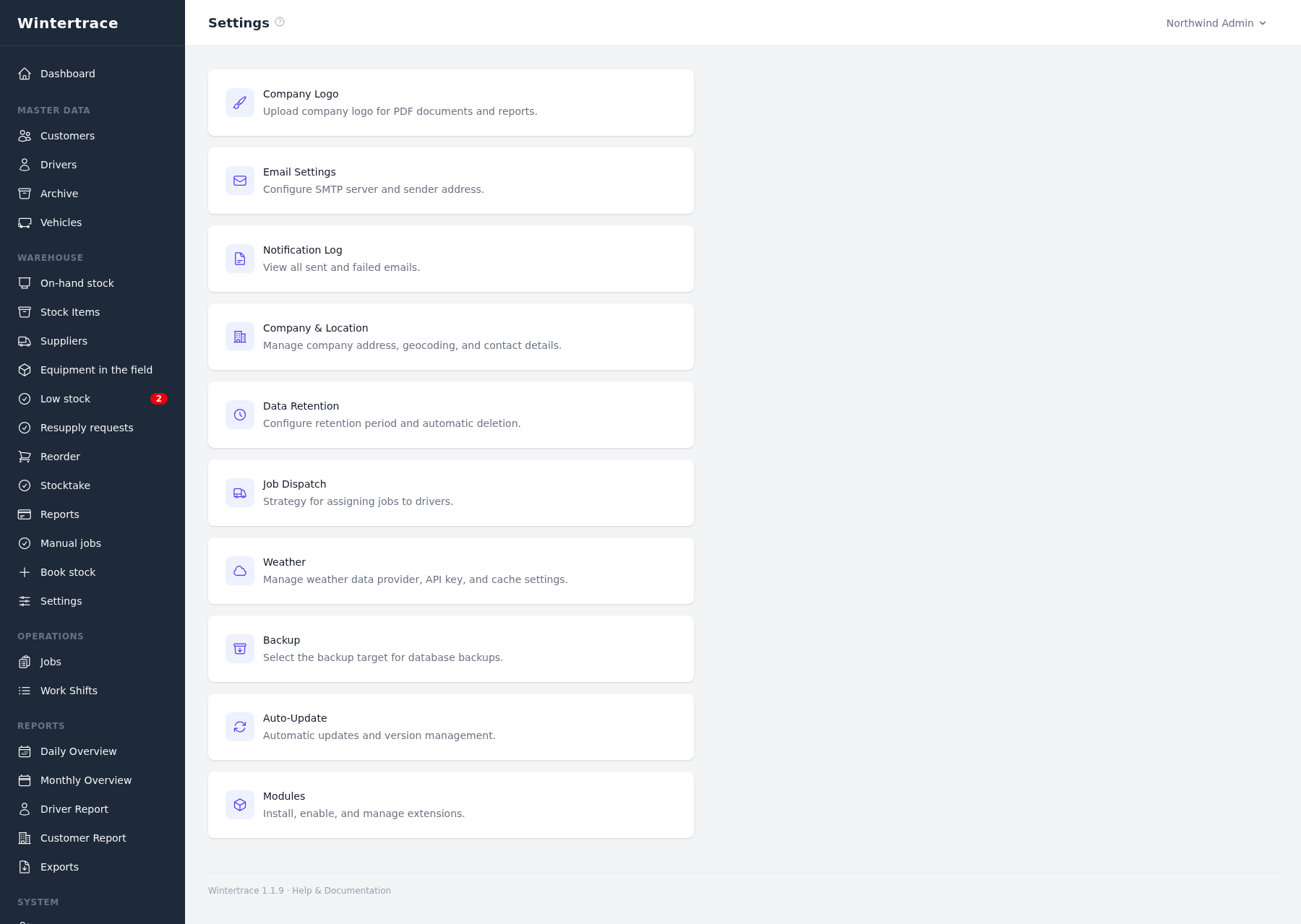
Company details, the address the weather is fetched for, the season the reports count against, and how long an operation may run before it is flagged as overdue. The interface language and the product name are set here too.
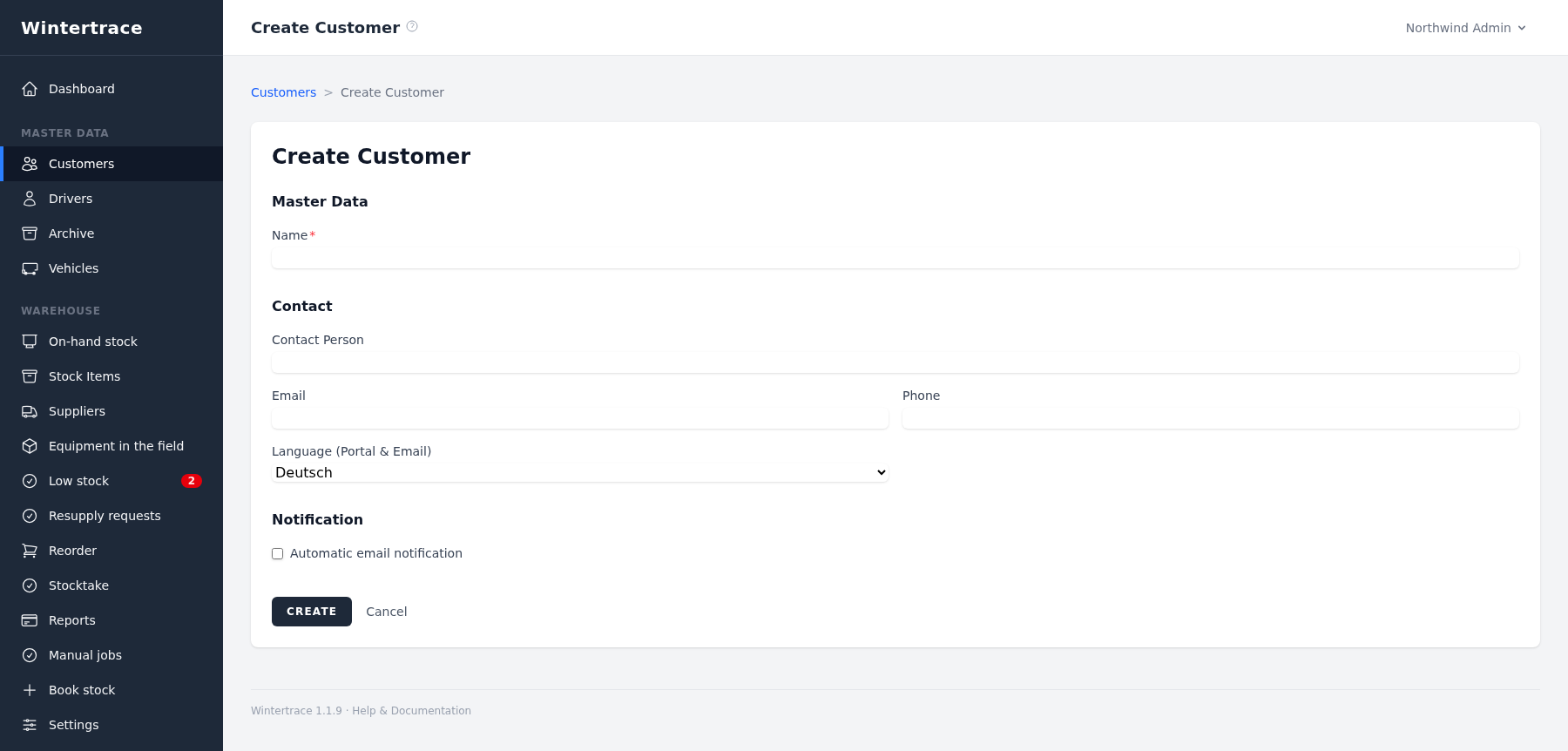
A customer holds one or more sites, and the site is what an operation is actually booked against. Each site carries its address, a clearing threshold, whether gritting is included, and access notes for the driver.
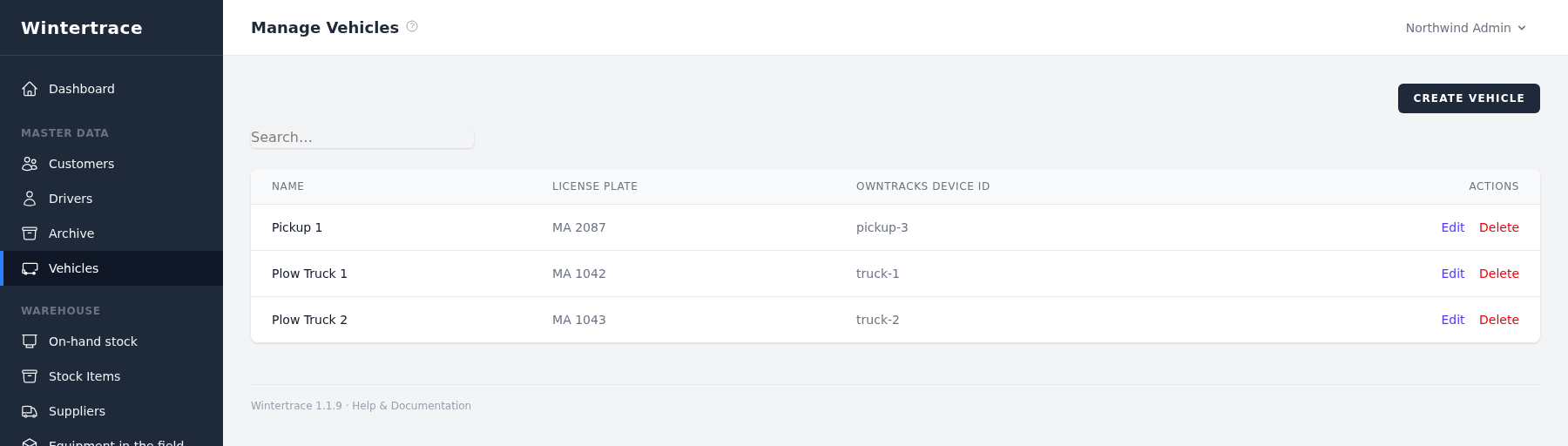
Each driver gets a login and a set of OwnTracks credentials that hand over as a QR code — that is the whole GPS setup on the phone. Vehicles carry a name, a plate and the tracker device they are tied to.
Part 2
The evening of 25 January 2026. Boston got 21.6 cm, with the temperature falling from −3.7 °C to −9.4 °C and wind around 36 km/h. Four drivers were out.
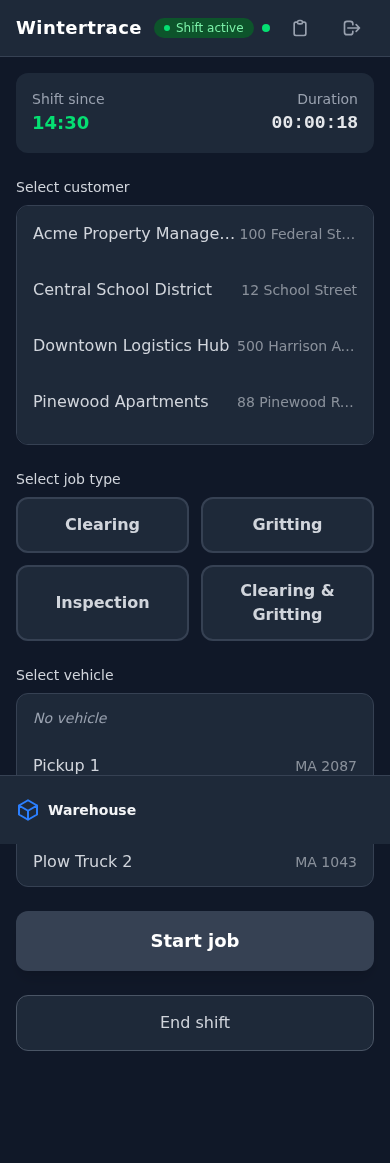
The driver view is a web page on the phone, not an app store download. A shift is started, then the customer, the type of work and the vehicle are picked. From that moment the operation is running.
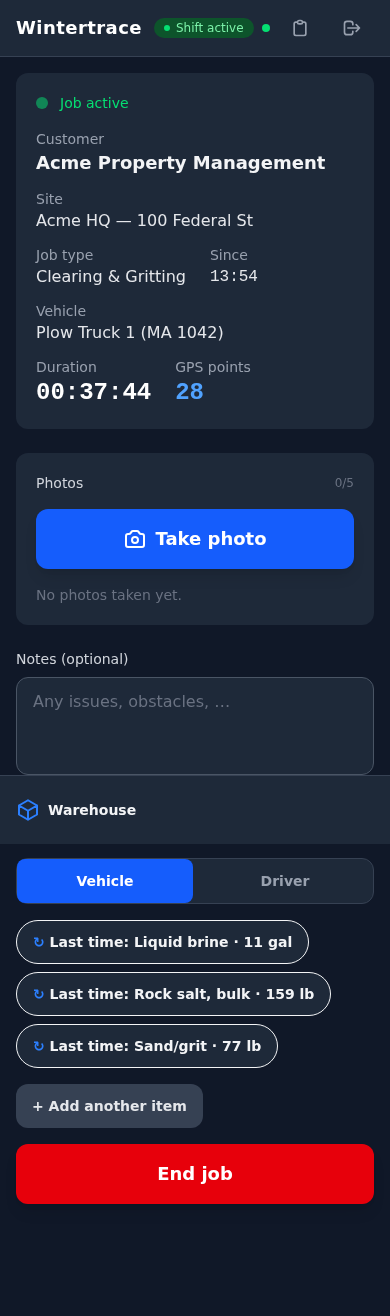
The running operation shows the site, the vehicle, the elapsed time and how many GPS points have arrived so far. Photos and a note can be added, and material used can be booked straight from the same screen when the warehouse module is installed.
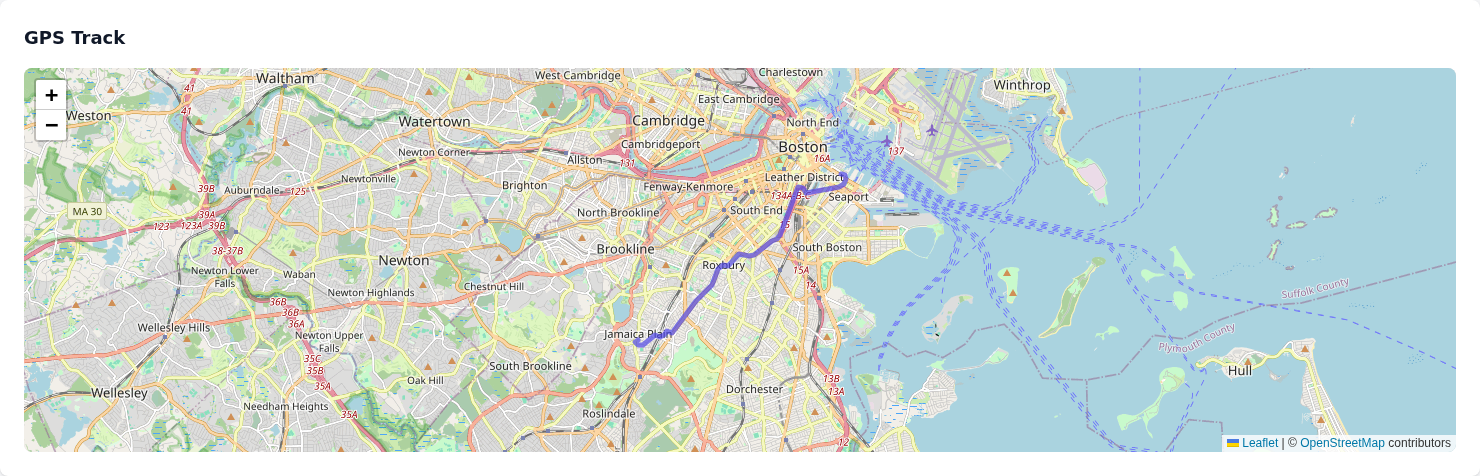
Position data comes from OwnTracks, a free open-source app, and goes straight to your installation — no tracking provider in between. Points are only stored while an operation is running; outside that, nothing is recorded.
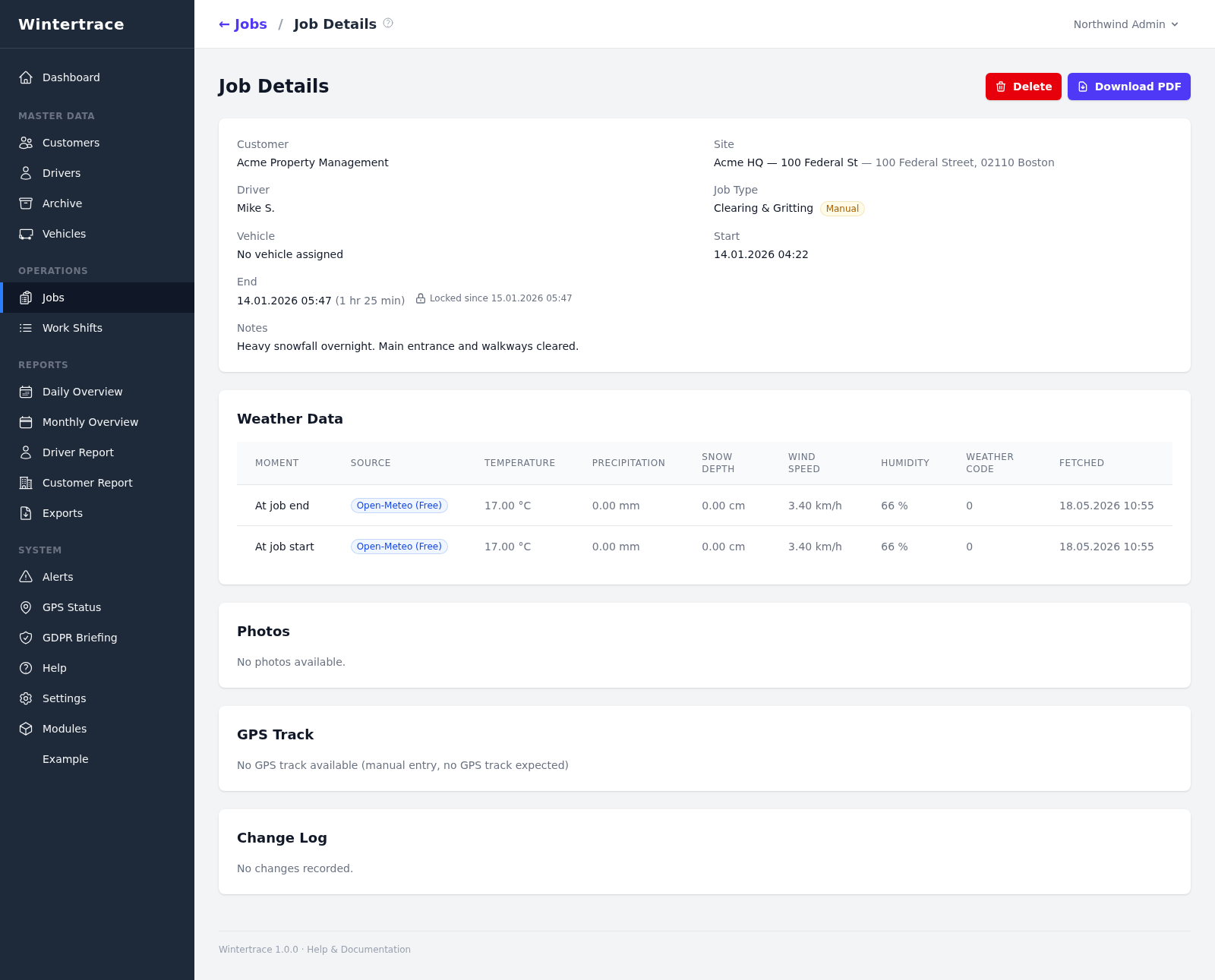
Everything the operation collected in one place: times and duration, the weather at start and end, the driver’s note, the map, and a change log that records every later correction with who made it and when.
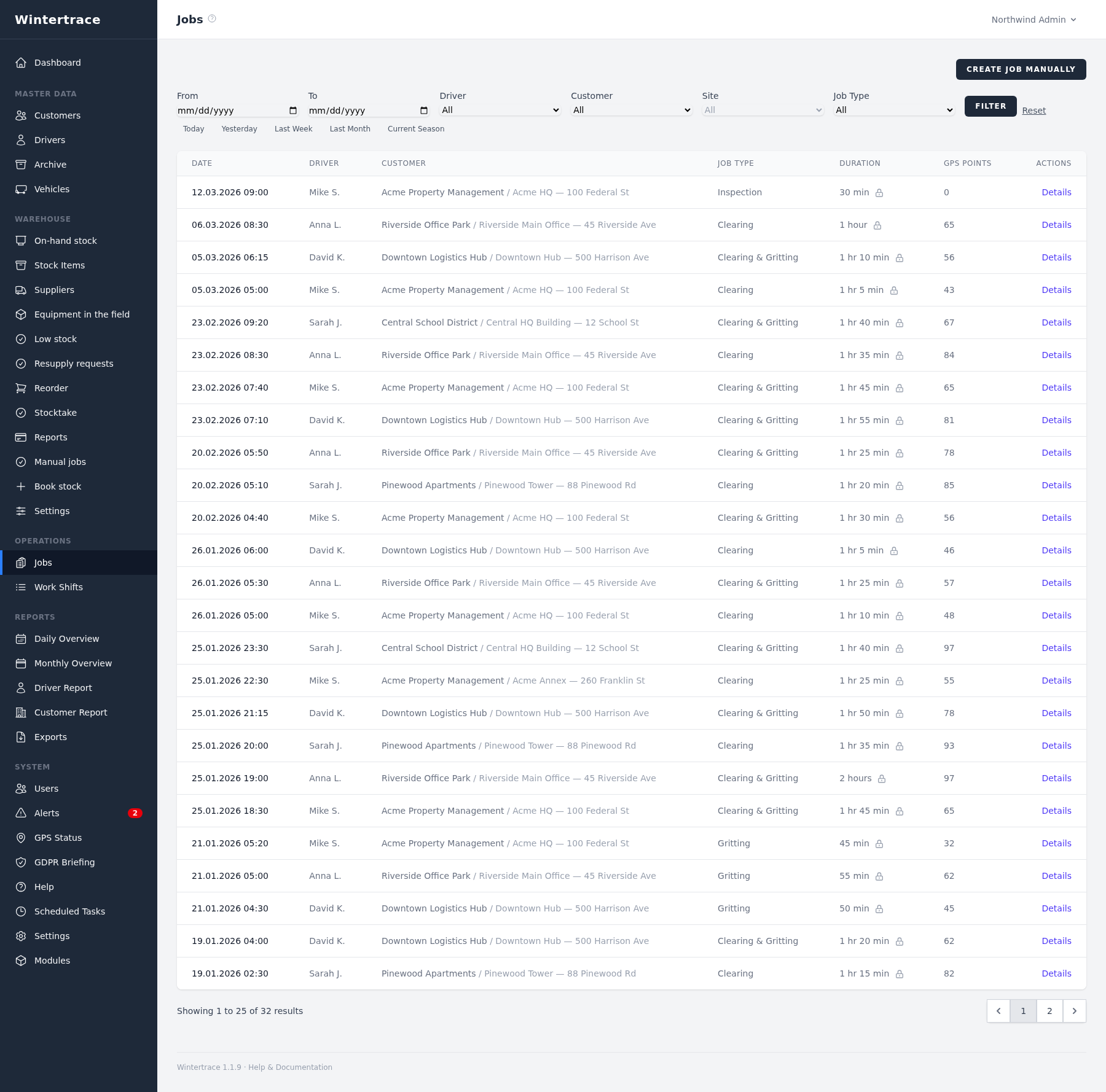
The operation list filters by period, driver, customer, site and type. The GPS points column shows at a glance which operations are backed by position data and which are not.
Part 3
The point of the whole exercise: a document that shows when, where and under what conditions the work was done.
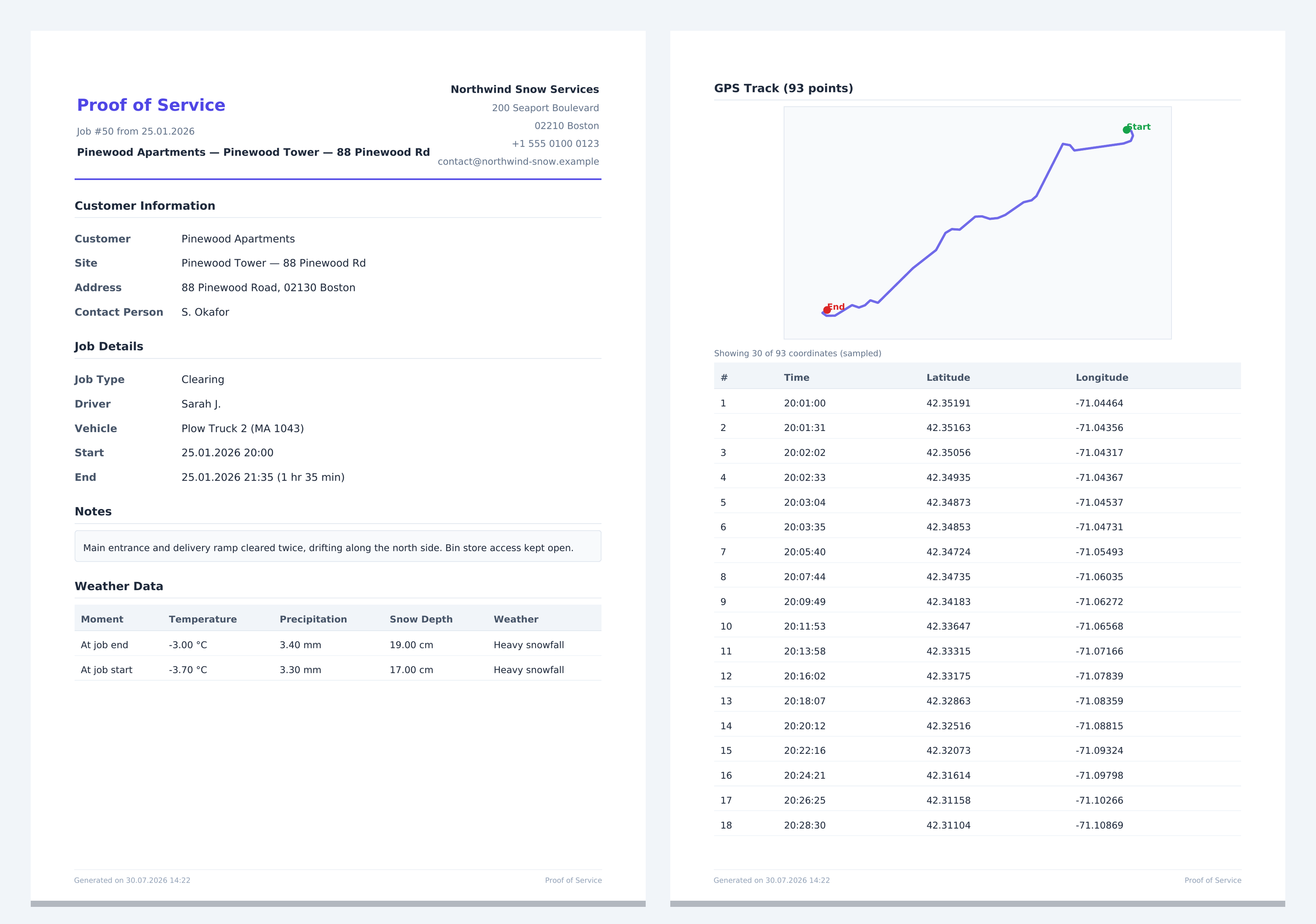
One PDF per operation, carrying your company details, the site, the times, the driver’s note and the measured weather. The second page holds the GPS track as a drawn line plus the coordinate list behind it. It documents what was done; it is not a substitute for legal advice.
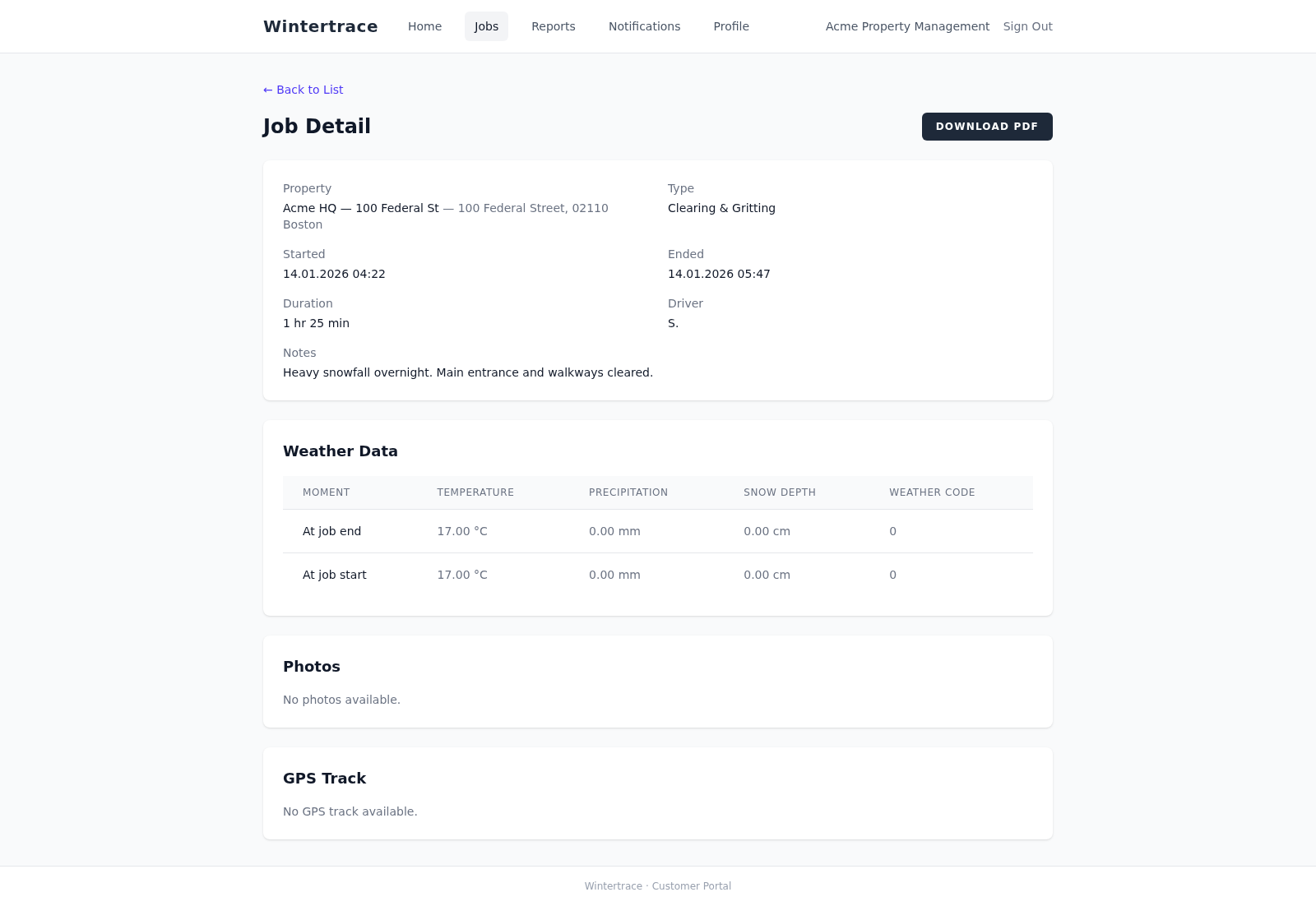
Customers can be given their own login. You decide per customer whether the GPS track, the photos and the driver name are visible — the defaults keep the track and the name hidden. Each operation can be downloaded as the same PDF.
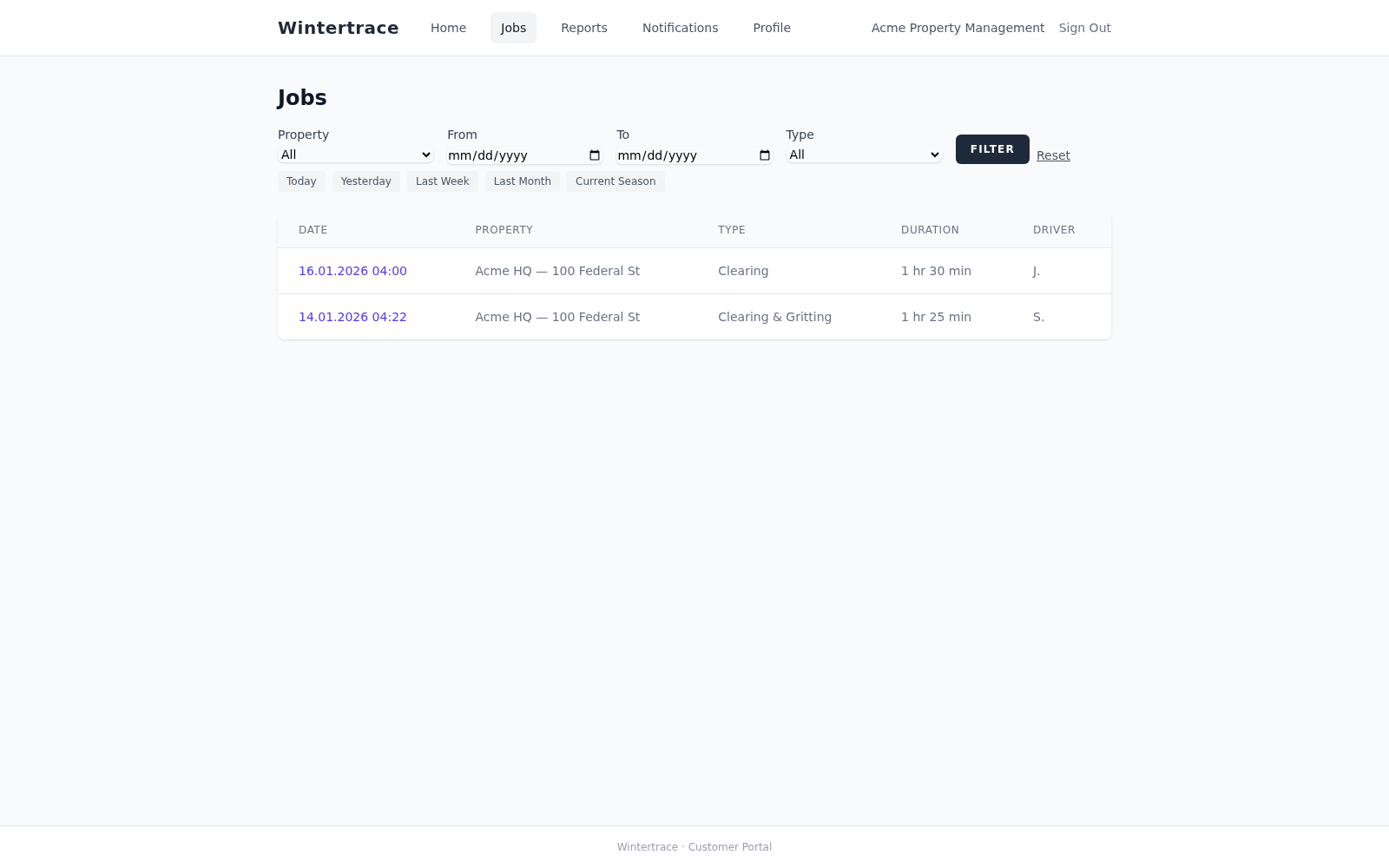
The portal list is filterable by property, period and type. A property manager can answer "was it cleared on the fourteenth?" without calling anyone.
Part 4
What the software is for between storms: knowing what happened, spotting gaps, and keeping the data tidy.
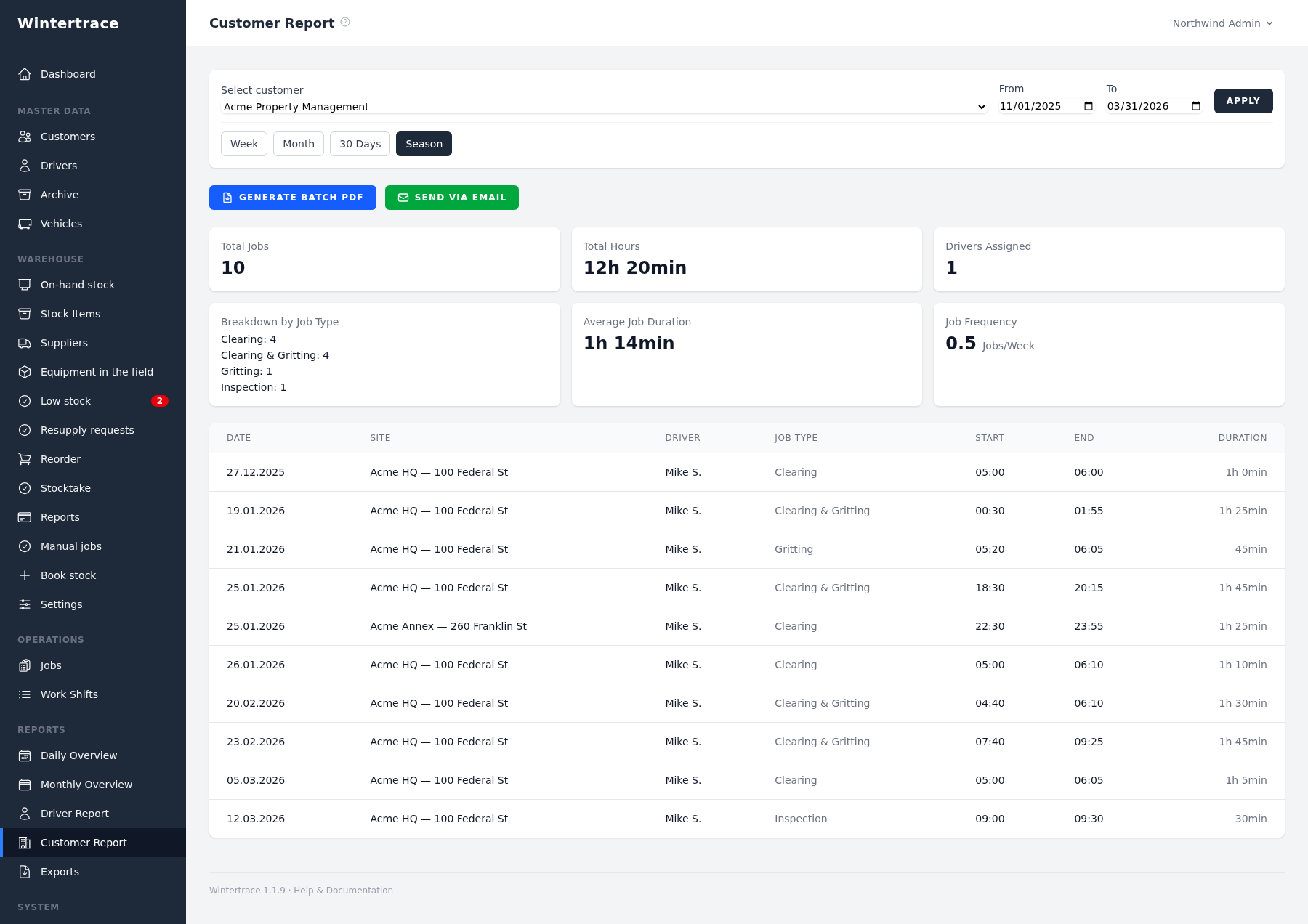
Reports cover a period you choose and roll up operations, hours and job types. The customer report can be exported as a batch PDF or sent by email straight from the page.
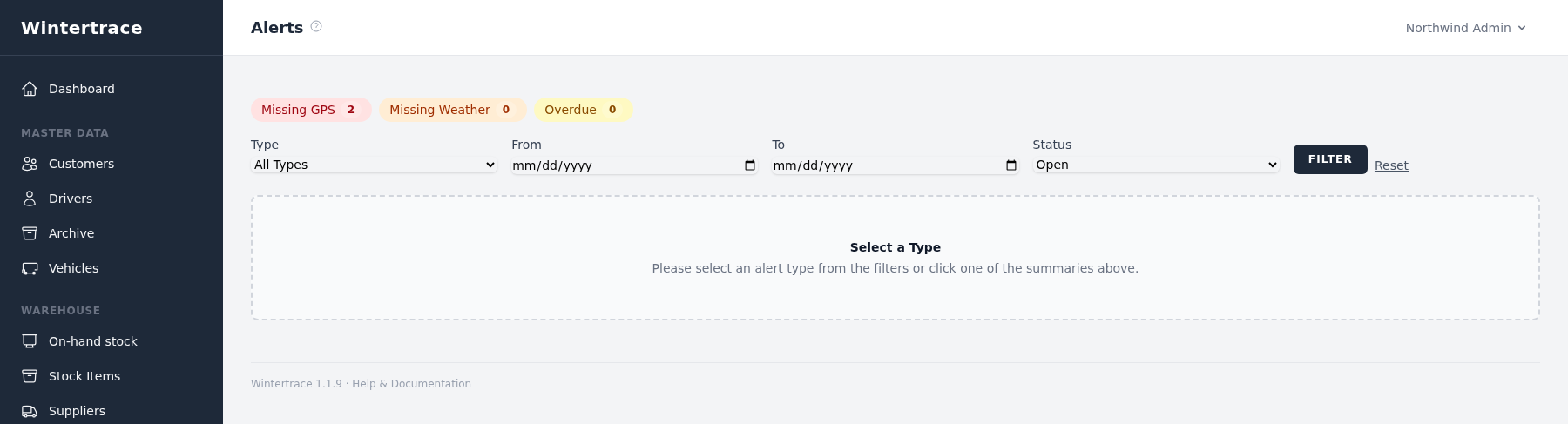
The software checks its own records: operations without GPS data, operations without a weather record, and operations that ran longer than the threshold you set. Two of the 32 operations here have no GPS data, and the alert says so.
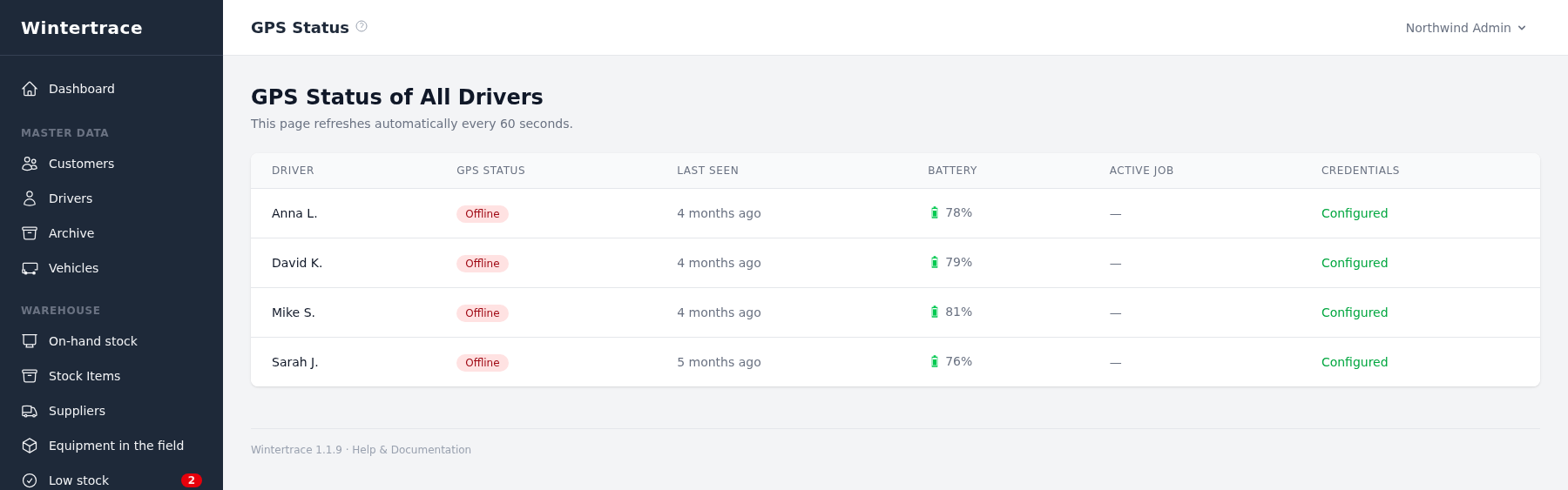
Per driver: whether OwnTracks credentials exist, when the last position arrived and how many points came in. A phone that stopped reporting shows up here rather than in a missing service proof three weeks later.
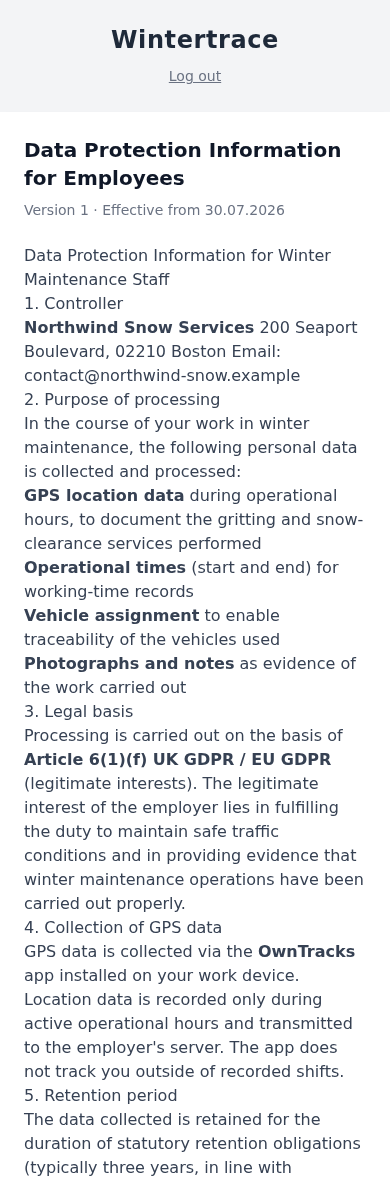
GPS data is personal data about your staff. Wintertrace ships a retention policy, an anonymisation function for departed drivers, and a staff briefing every driver acknowledges at first login. The briefing is a template — adapt it to your own organisation and jurisdiction.
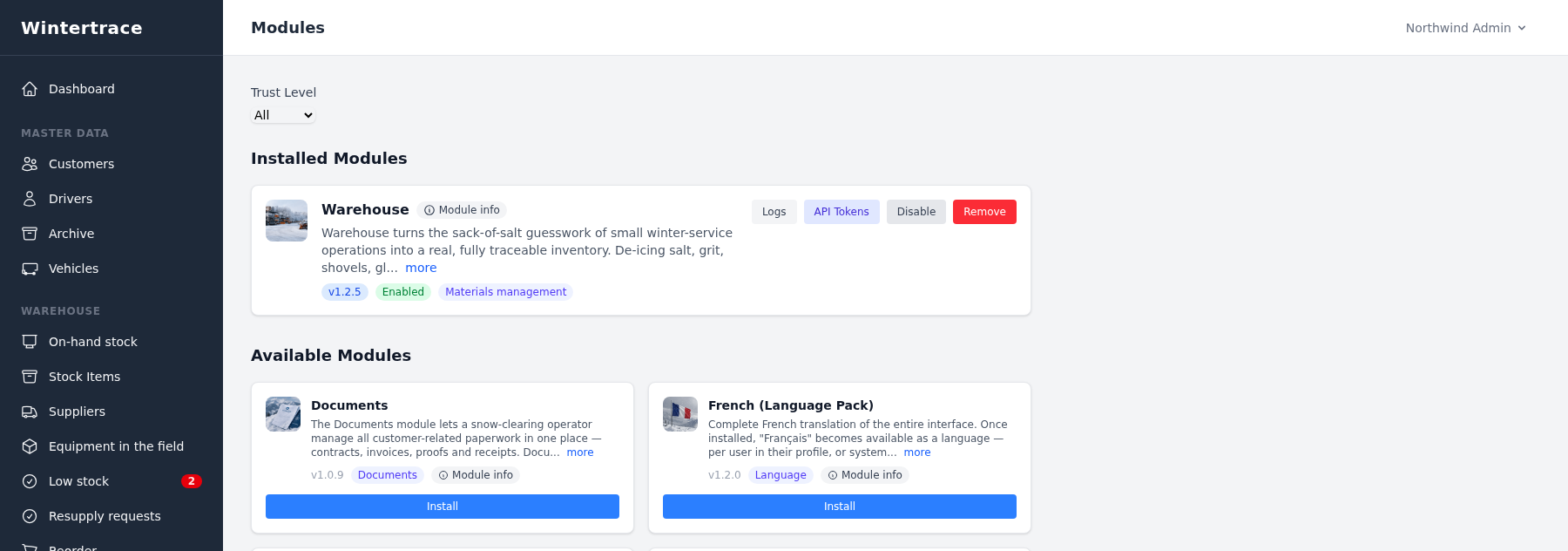
The core stays small; anything beyond it is a module you install from the catalogue — warehouse and material tracking, document management, notification channels, extra interface languages. Installed modules can be disabled or removed again.
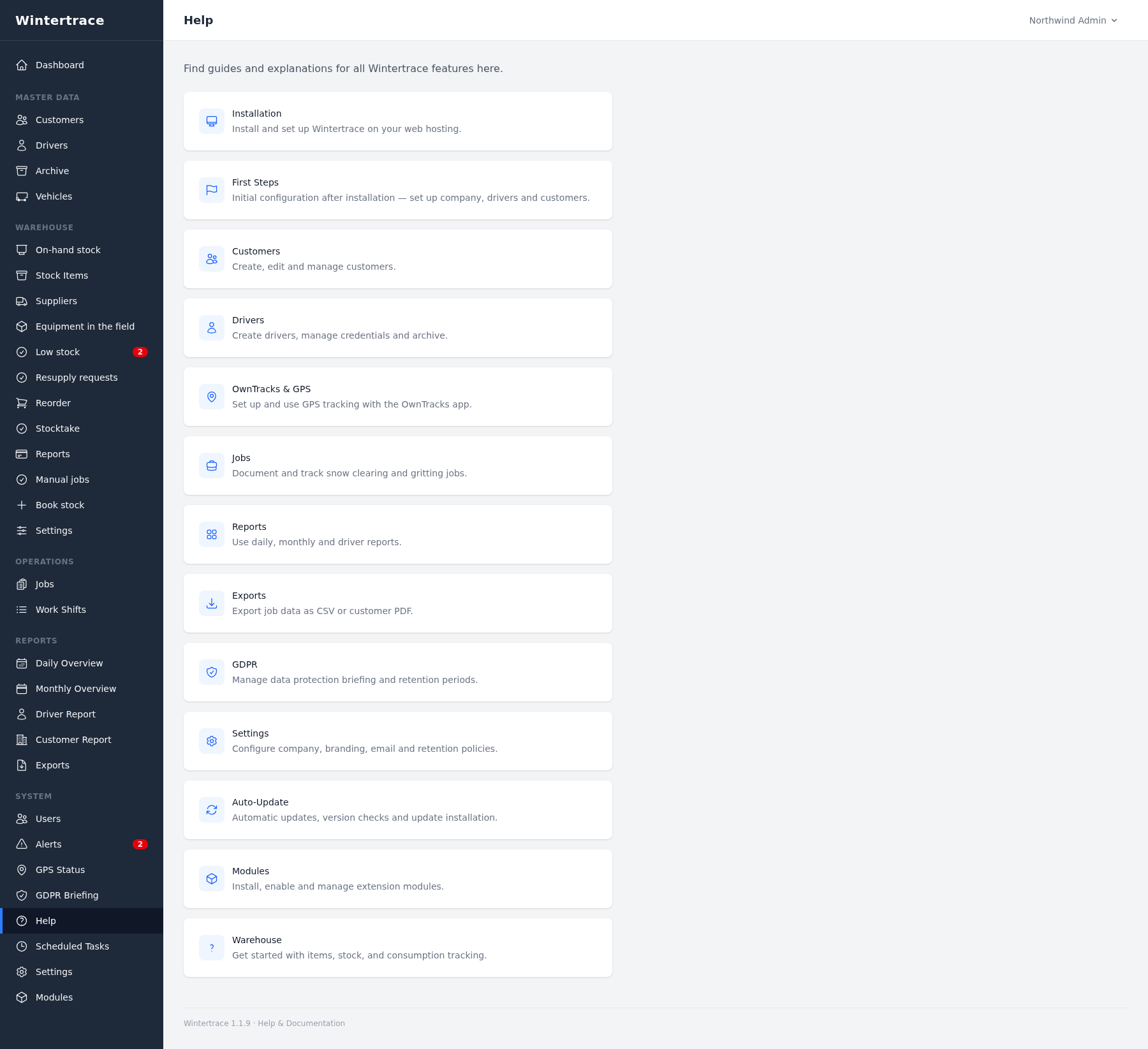
Every area links to its own section of the built-in documentation, so a new dispatcher is not dependent on someone remembering how it works.
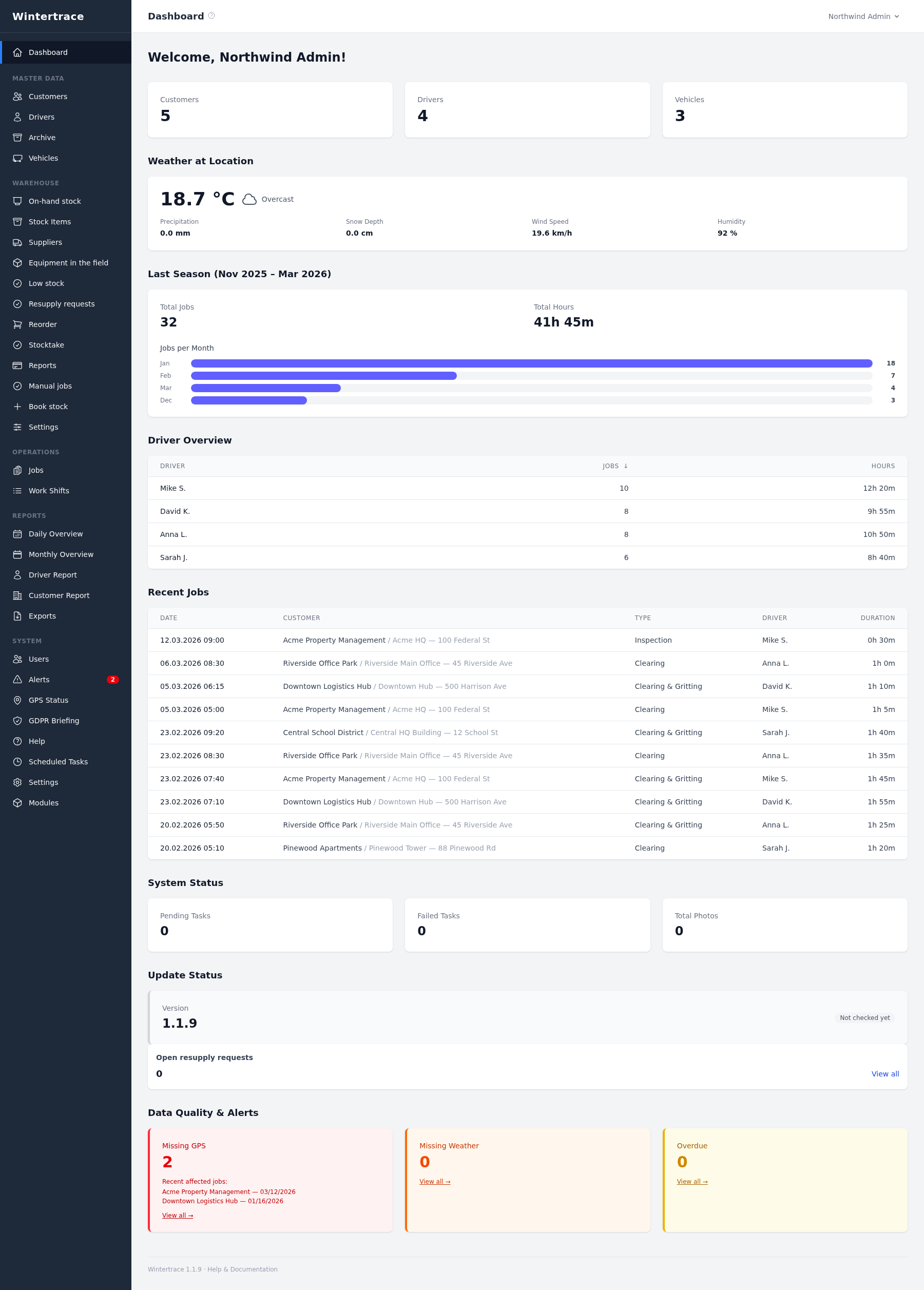
Where a dispatcher starts: current weather at your location, the season’s totals, hours per driver, the most recent operations and any open alerts.
Three things are deliberately missing rather than staged:
Wintertrace stores timestamped photos per operation and puts them in the service proof. This demo has none: we would have had to stage or generate the pictures, and a generated photo in a screenshot of an evidence document is exactly the wrong thing to do. The empty photo sections above are the honest version.
Every name, site and operation here is invented. How the software feels with your customers, your sites and your routes is something screenshots cannot answer.
The installer screenshot shows the first step, not whether it runs on your hosting. The requirements are PHP 8.4 or newer, MySQL or MariaDB, and a scheduled task.
A live demo is your own Wintertrace installation, set up automatically and free for 48 hours, with every feature and module. It needs a name and an email address — that address is your login. Afterwards everything is deleted, including the data.
Wintertrace is early and shaped by real winter service work. Share your feedback →