Feature · Shift management
Hours captured by the work, not by hand
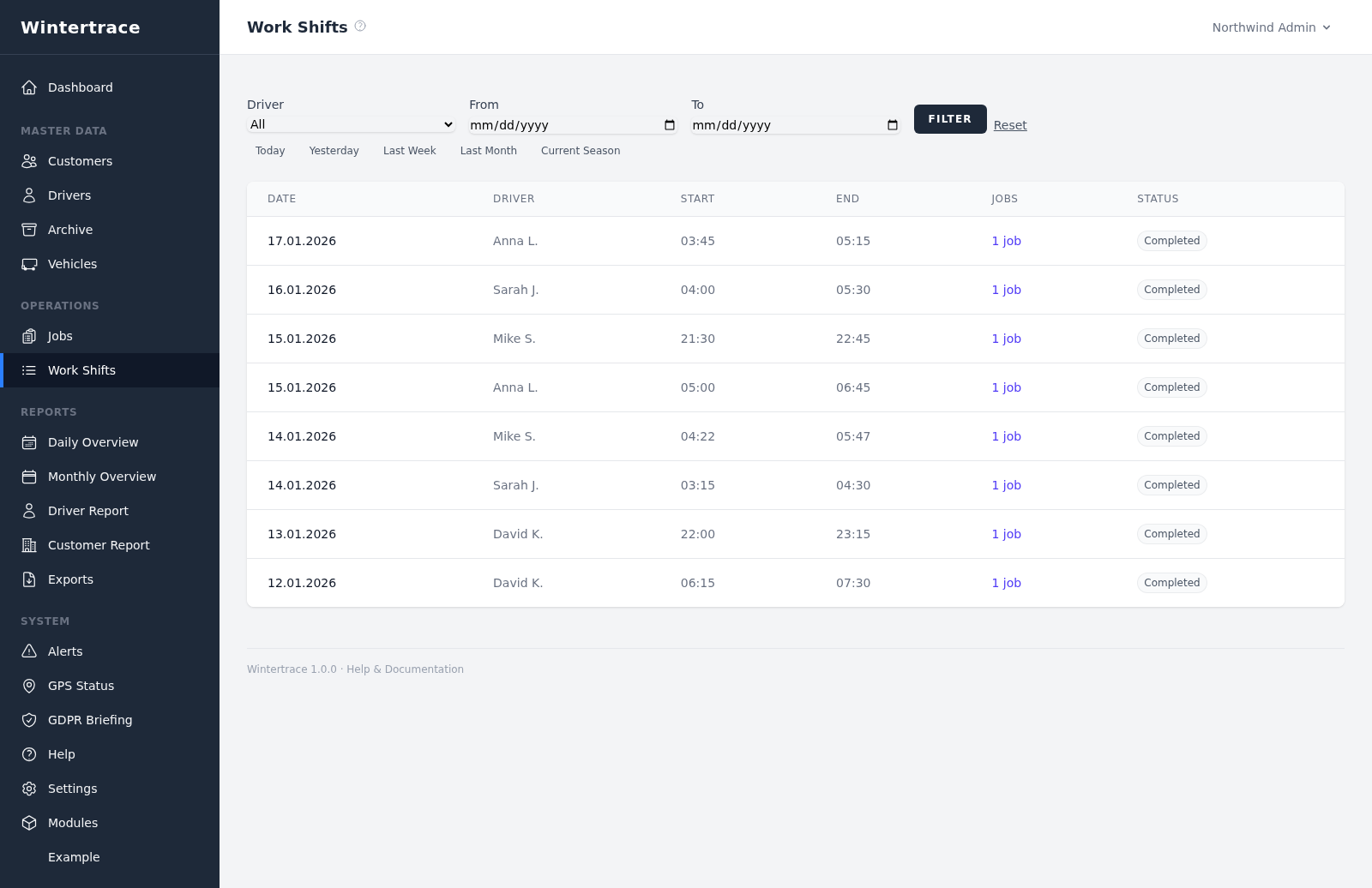
Drivers do not enter timesheets. They start their shift, run their operations, and end their shift — the system records exactly when. Payroll exports follow directly from the captured data.
Shift workflow
Three actions across a whole shift, two of them a single tap. Everything between them is recorded without being asked for.
- 1
Start shift
The driver opens the app and starts their shift. Timestamp is captured automatically.
- 2
Run operations
During the shift, any number of operations can be started, paused, and ended. Each one ties back to the active shift.
- 3
End shift
The driver ends the shift. Duration and totals are computed automatically.
CSV export for payroll
One file, nine columns, straight into the spreadsheet the payroll already runs on.
Operation data — including shift links — exports to a single CSV file that drops cleanly into Excel, Google Sheets, or payroll systems. Filterable by time range, driver, and customer.
operations-export.csv · 2 of 47 rows
| Operation date | Driver | Customer | Service location | Operation type | Start and end time | Duration | Shift ID | Source (manual / automatic) |
|---|---|---|---|---|---|---|---|---|
| 2026-01-14 | M. Sowinski | Ridgeline Property Mgmt | Ridgeline Court, Lot B | Plowing | 04:22–05:09 | 0:47 | SH-2291 | automatic |
| 2026-01-14 | M. Sowinski | Ridgeline Property Mgmt | Ridgeline Court, walkways | De-icing | 05:09–05:26 | 0:17 | SH-2291 | manual |
The source column distinguishes automatic operations (captured live via GPS) from manual operations (back-entered after a tech failure or for early-morning runs before the app was started).
Manual operations
Real life: phones die, the app crashes, someone forgets to start recording. Manual entry covers all of that.
Operations can be entered manually in the admin area or in the driver app — date, time, customer, service location, operation type, and vehicle. Weather data is fetched retroactively for the chosen time. Manual operations are flagged as such on the PDF service proof so the documentation chain remains honest.
Try Wintertrace.
Upload one small file to your web hosting, open it in your browser, and the installer puts the latest signed Wintertrace core on your webspace. About ten minutes — no FTP client needed.
install.php · Ed25519-signed core · GNU AGPLv3
Read the installation guide →